
All your AI sessions and tools, in one window.
Run Claude Code, GitHub Copilot, Codex and Antigravity sessions side by side, and always know which one needs you. Open Jira, Productive or GitHub right next to them, so you follow up without switching apps. With the agents you already have, on Mac, Windows and Linux.
brew install --cask estruyf/tap/seshboardFor Macs with Apple Silicon, macOS 13 or later.For Windows 10 and 11, on x64 and Arm64 PCs. Free and open source. Needs Claude Code, GitHub Copilot CLI, Codex or Antigravity CLI, signed in.

Your own agents
It runs the claude, copilot, codex and agy you already use, with your logins, settings, commands and skills. Nothing new to sign in to.
Stays on your computer
Your prompts and sessions only go where your agent sends them. Remote runs only when you turn it on, encrypted from your phone to your computer.
Free and open source
MIT licensed and built in the open on GitHub. Signed builds for Mac and Windows, and packages for Linux, that update themselves.
Less switching
Stop switching apps to follow up
The ticket, the pull request and the running app sit in a browser next to the session. Read the task, check the review and answer the agent, all in the same window.
Your project tool
Keep the Jira, Productive or Linear ticket open beside the session that works on it. Copy the acceptance criteria straight into the prompt.
Your pull requests
Open the pull request on GitHub next to its session, read the review and the failing check, and send Claude the fix.
Your running app
See the dev server’s page while Claude changes it. Claude can open it too, click through it and read the console to check its own work.
Favourites, bookmarks per project and pinned tabs bring your pages back after a restart. Your sign-ins stay, and browser profiles keep several accounts of one site side by side. Pick an element on the page to put it in your message, or give the browser a window of its own on another screen.
The browserAgents in the browserBrowser profilesPick an elementIts own window
Stay on top
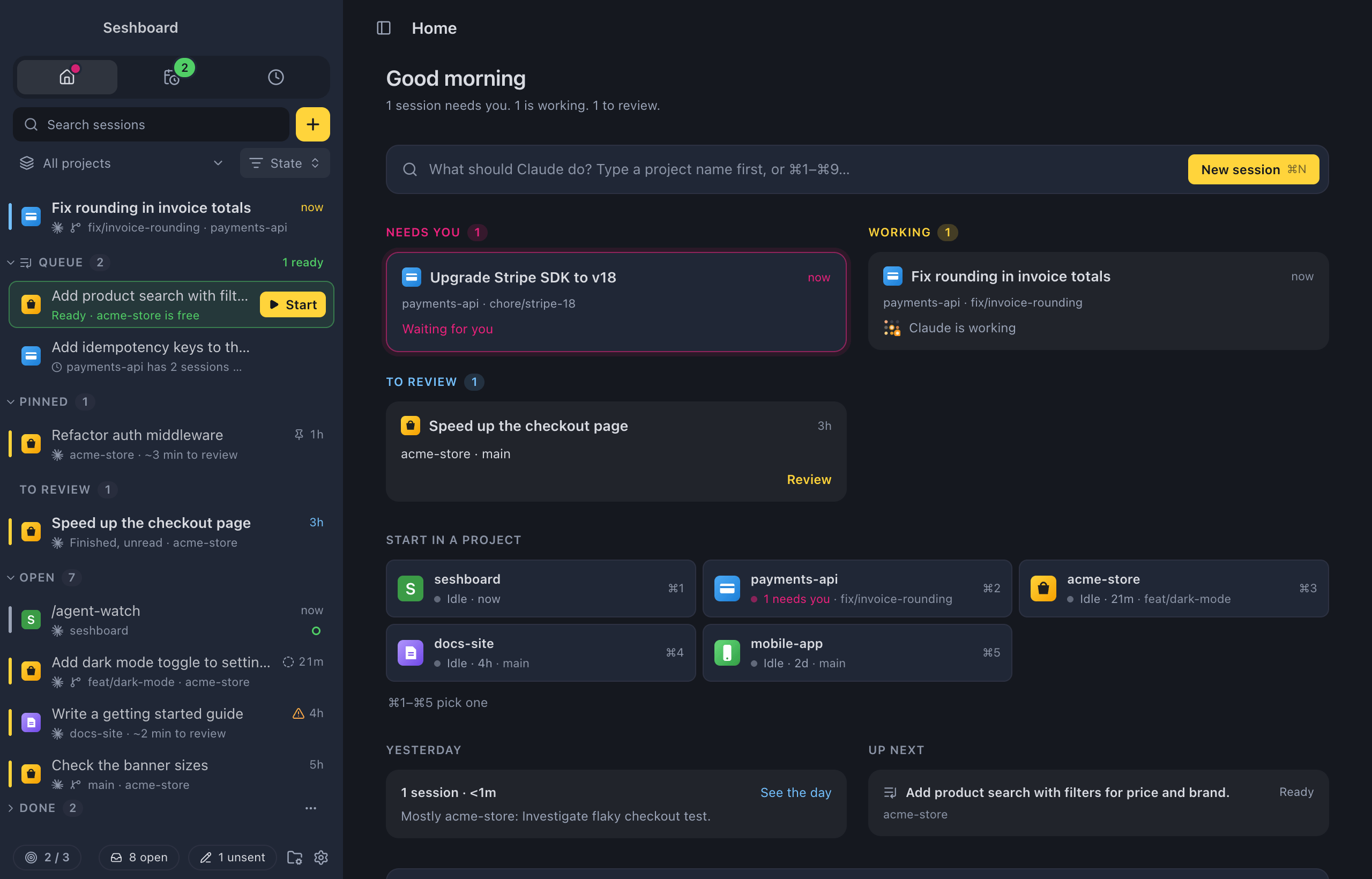
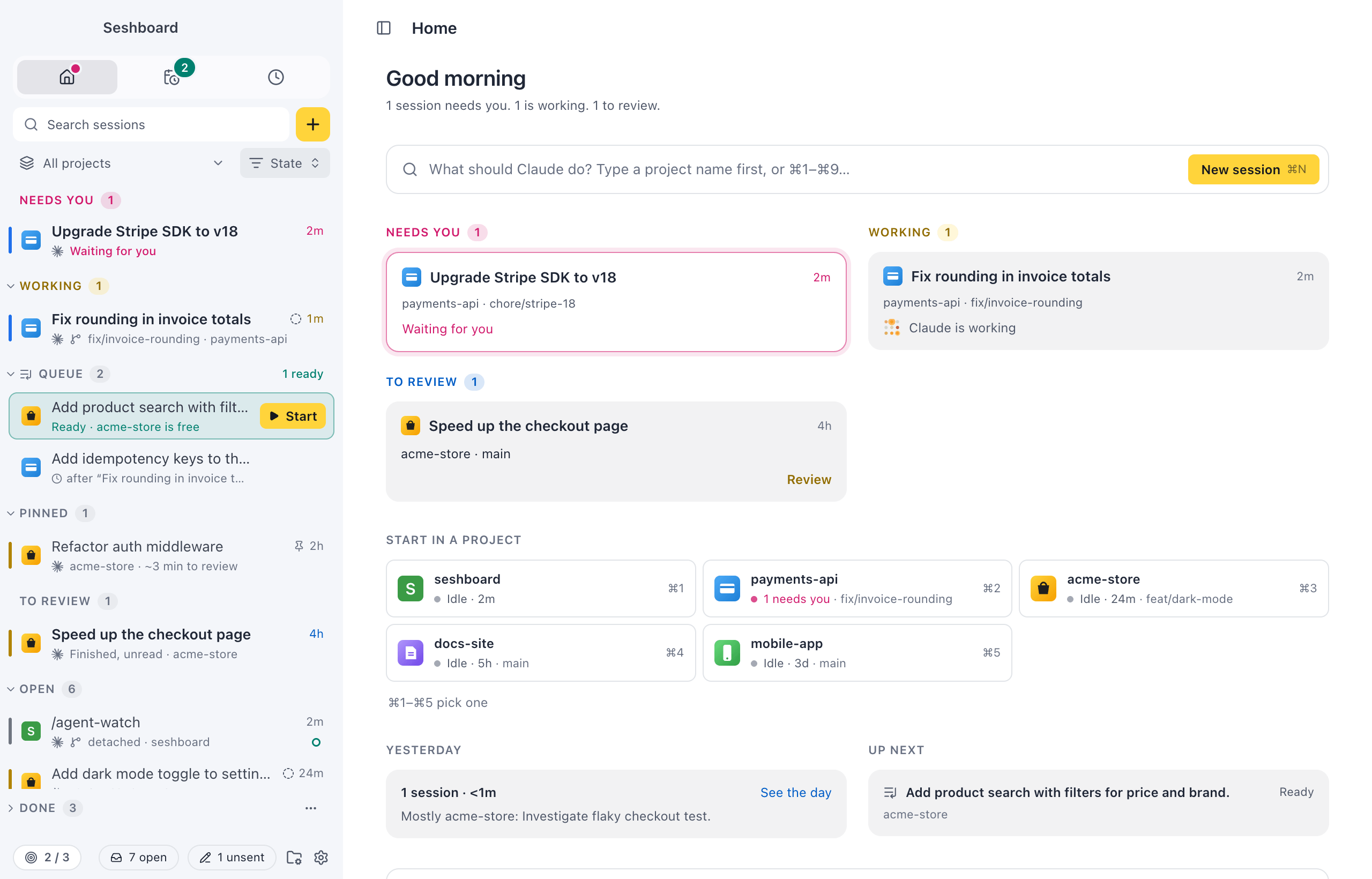
See which session needs you
Every session sits in one list, across every project, agent and account: the ones you start here and the ones in your terminal. Sessions that Needs you go to the top, then the ones that are Working, then the rest by day.
A notification tells you when Claude asks or finishes, so you can look away. Command, Shift, UControl, Shift, U jumps to the next session that needs you, from anywhere. At the end of the day, Activity shows what you did, per project, ready for your standup.
Review
Catch up in seconds
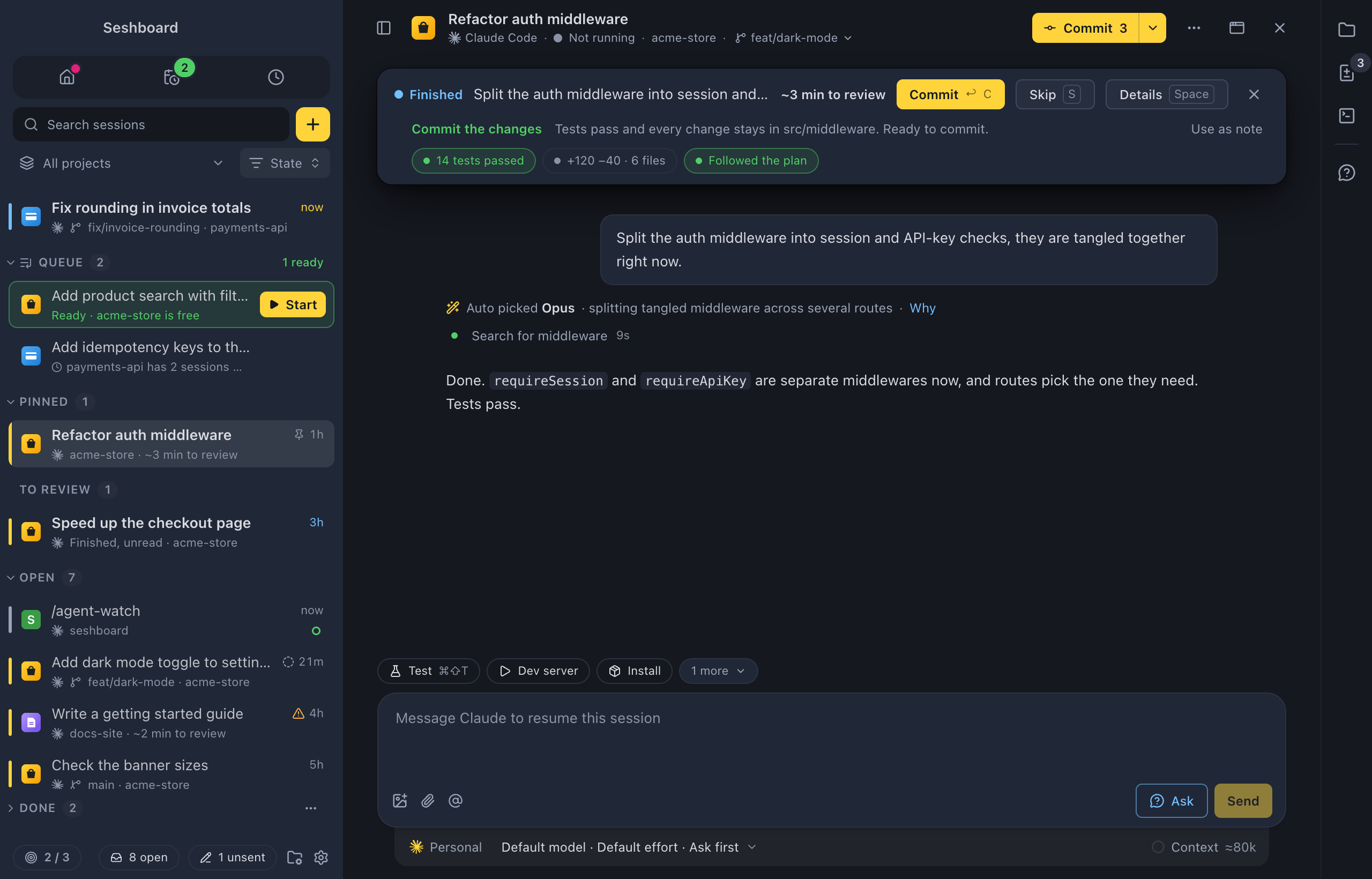
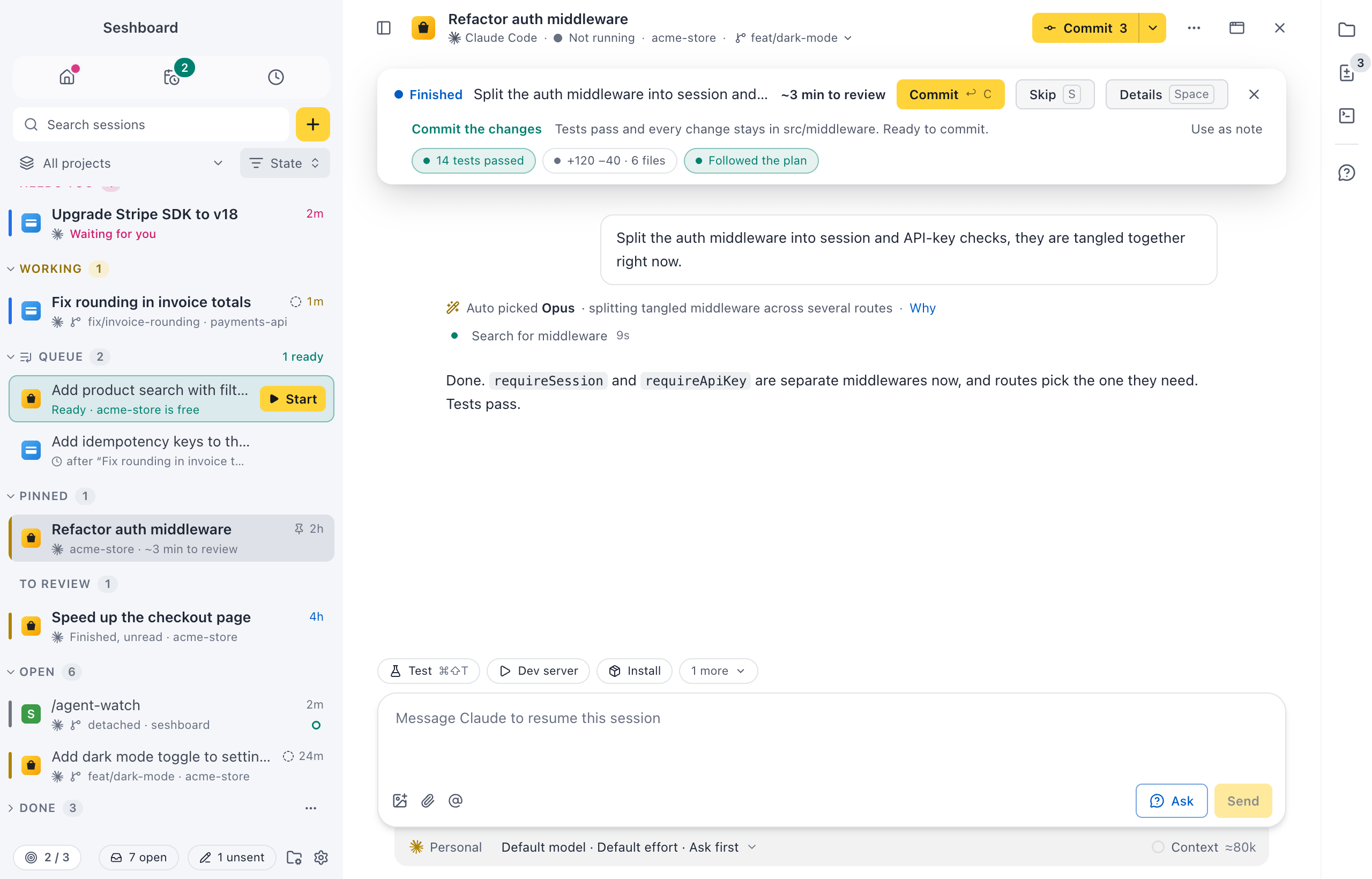
When a session finishes, a short briefing says what Claude did, what it skipped, and the one thing it needs from you. It shows whether the tests passed, how much changed, and whether Claude stayed inside what you asked for.
Reading the reply itself? Skim fades the sentences that matter least, and keeps failures, skipped work and questions in full. Want to know more? Ask about this session in a panel next to it, while it keeps working.
In parallel
Many tasks at once, without the mess
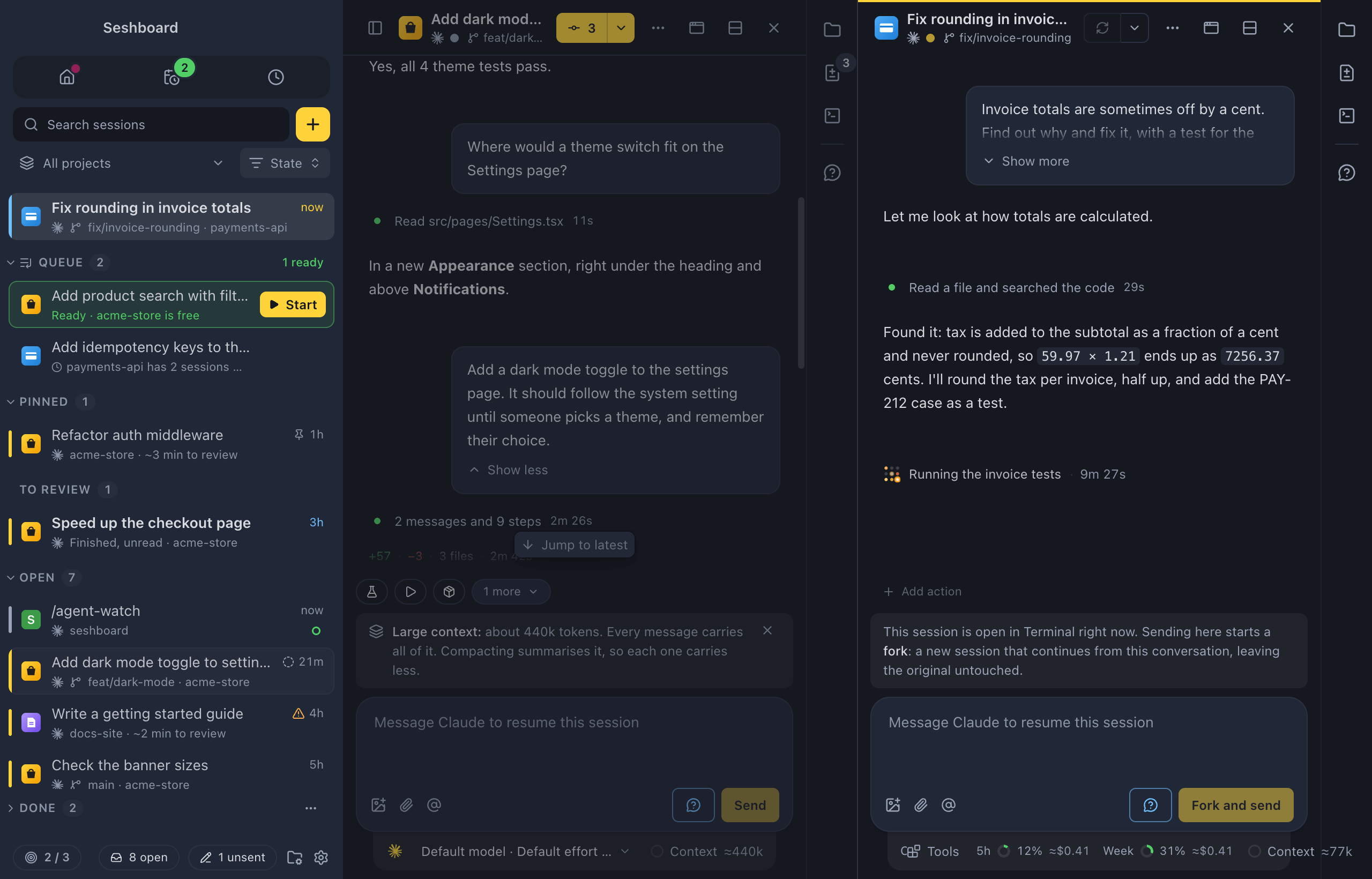
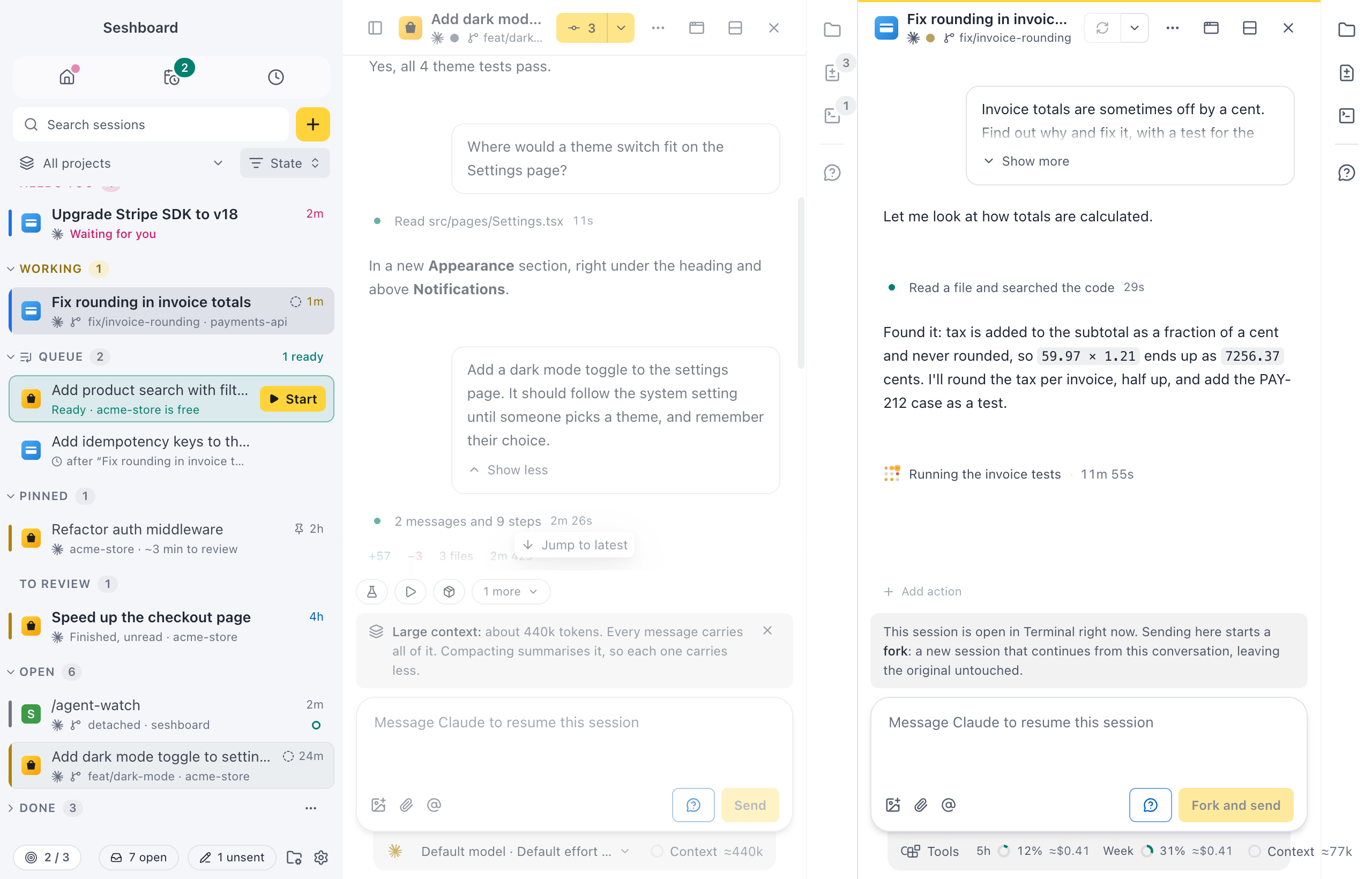
Start each task in its own worktree, on its own branch, so sessions never step on each other. Queue the prompts that have to wait, and start them with one click when their project is free.
Have a list of tasks? Send it to an orchestrator. It starts a session for each, with Claude Code, Copilot or Codex, and tells you which ones need you and which pull requests are ready.
Watch two sessions side by side, or give one its own window on another screen. Set a focus limit, and Seshboard asks before you start one more.
Pipelines
Plan, build, check and push in one run
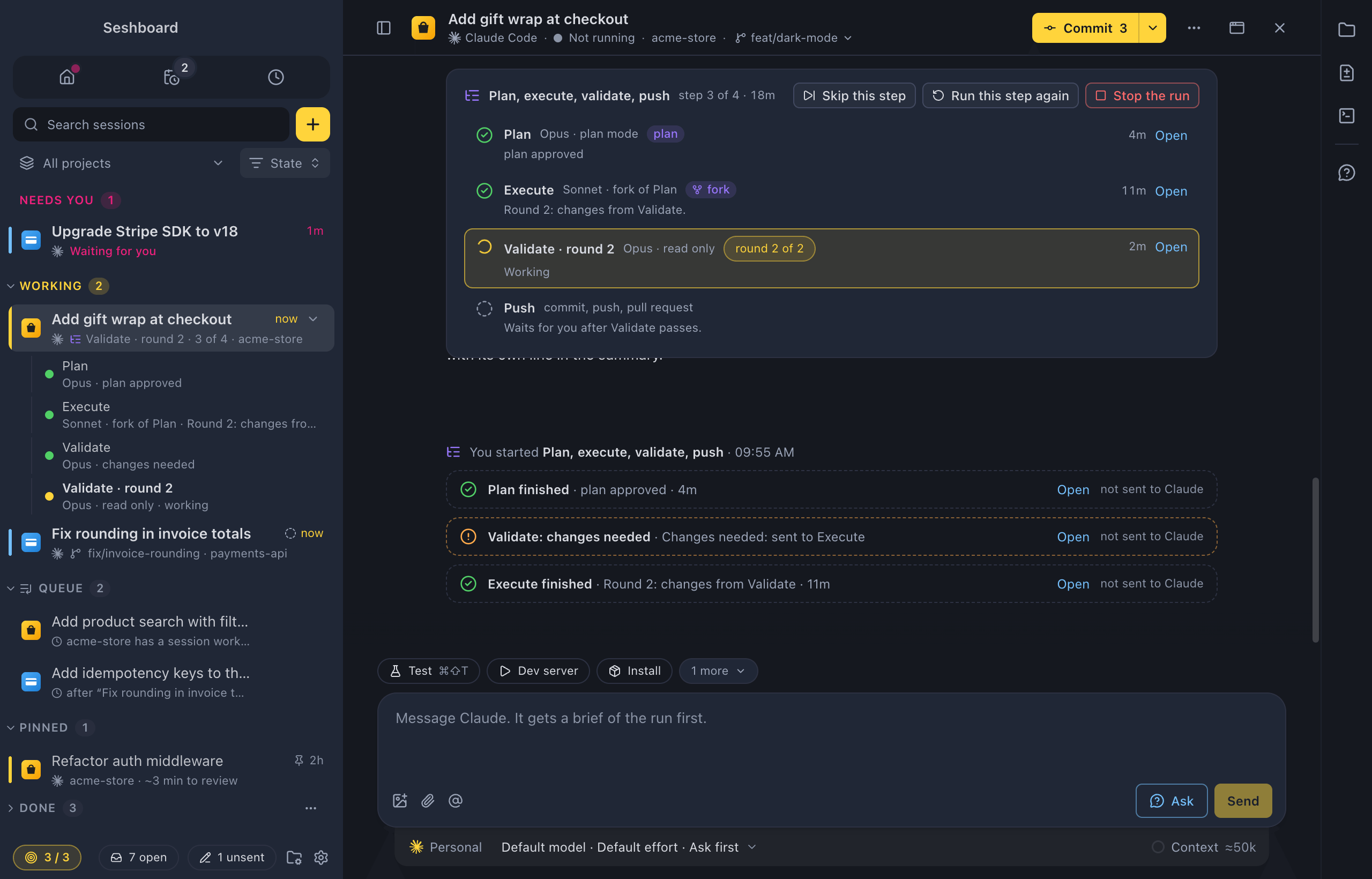
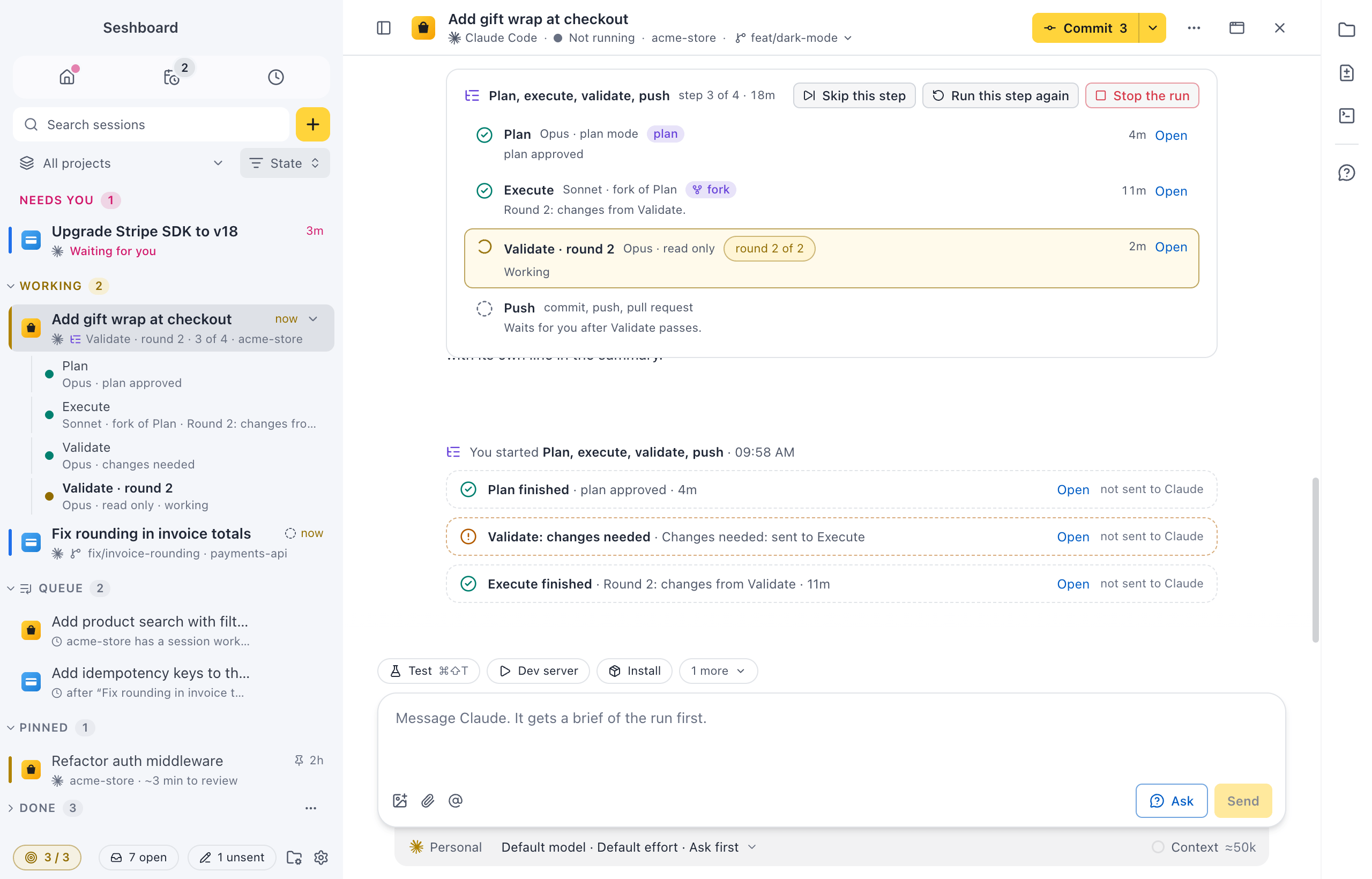
Give one task to a pipeline and each step runs in its own sub-session under it: plan with one model, build with another, have a fresh session check the work, then push. Each step gets what the one before it did.
When the check still asks for changes, Another round sends them back to the build step. Start a run from New session’s Run as, from a session’s menu, or from your phone.
On its own
Work that starts by itself
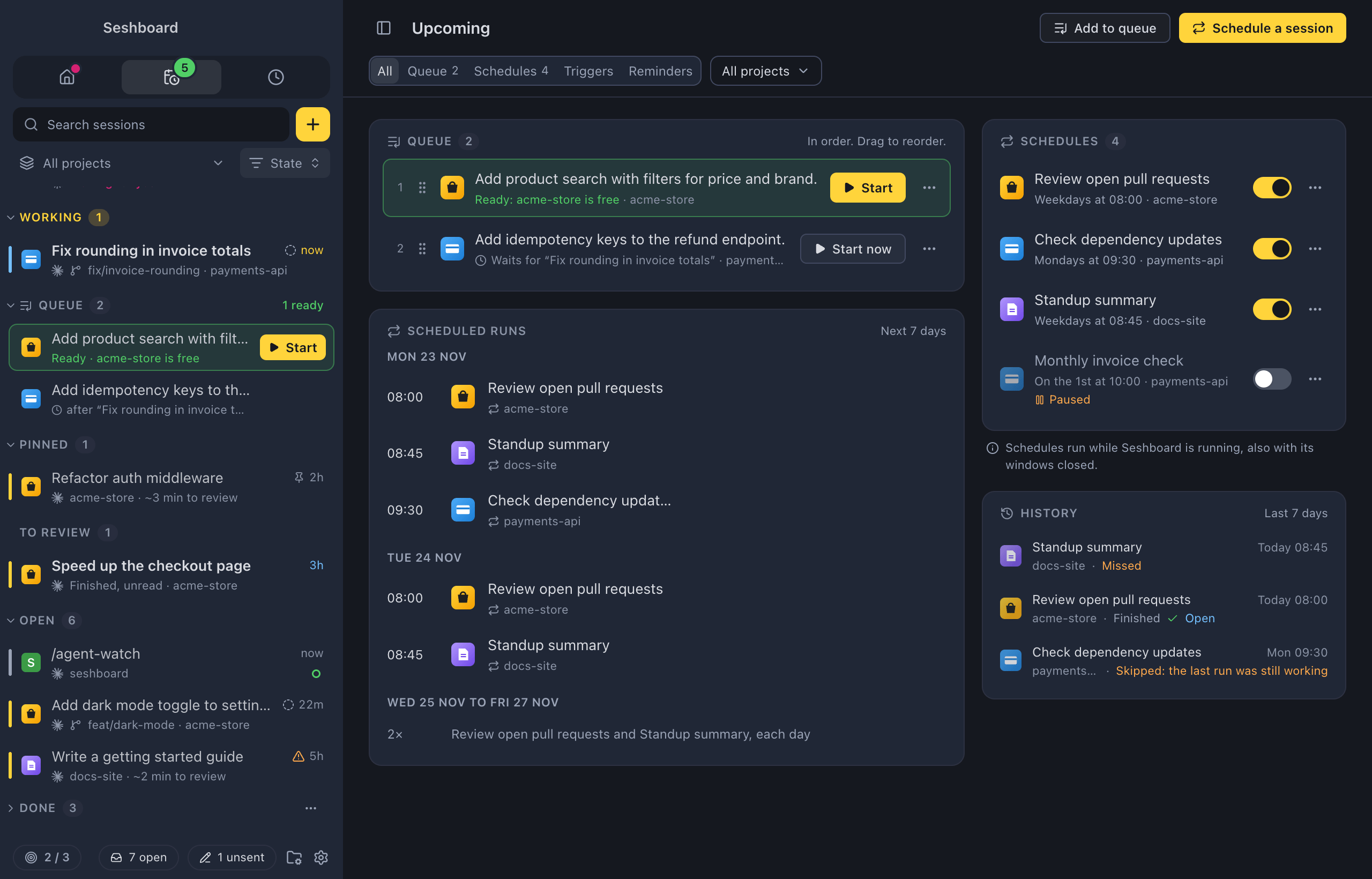
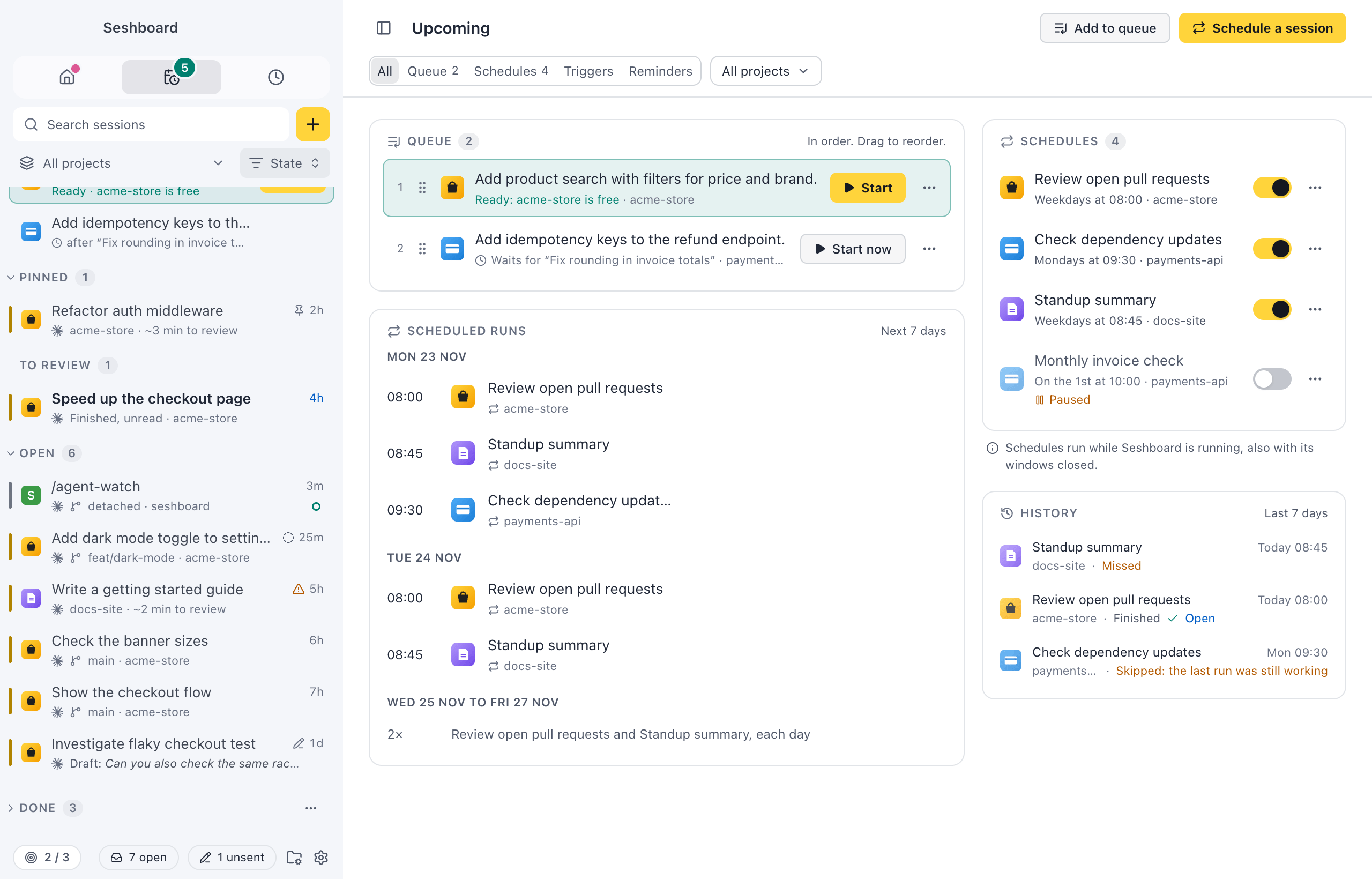
Schedule a prompt for once, every weekday or every month. Let a trigger start a session, or a whole pipeline, when CI fails on a branch or an issue is assigned to you. A queued prompt starts by itself when the session it waits for is done.
Upcoming shows all of it in one place, across your projects: what is queued, the runs of the next 7 days, and how the last ones went.
Ship
From changed files to a pull request
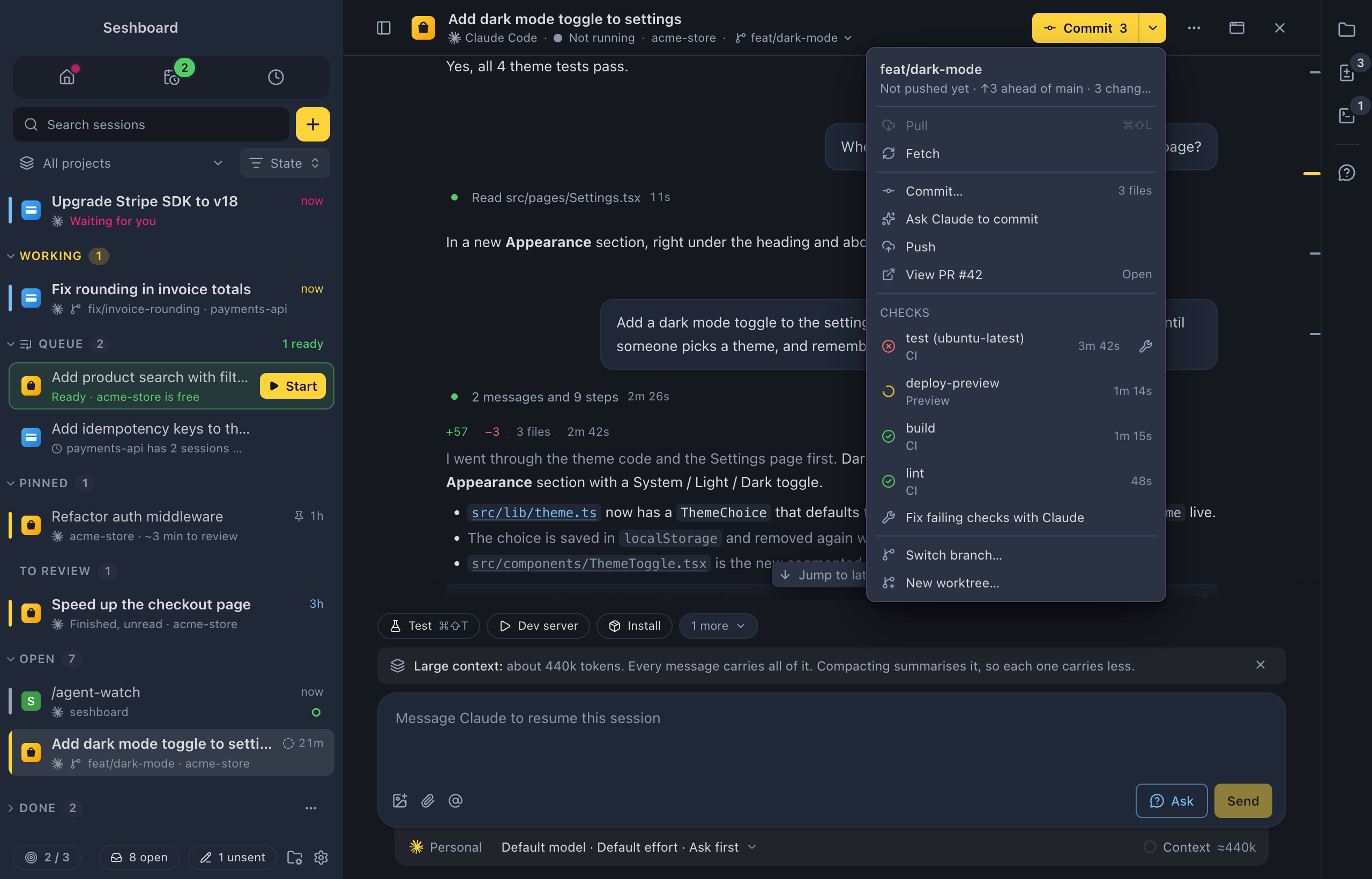
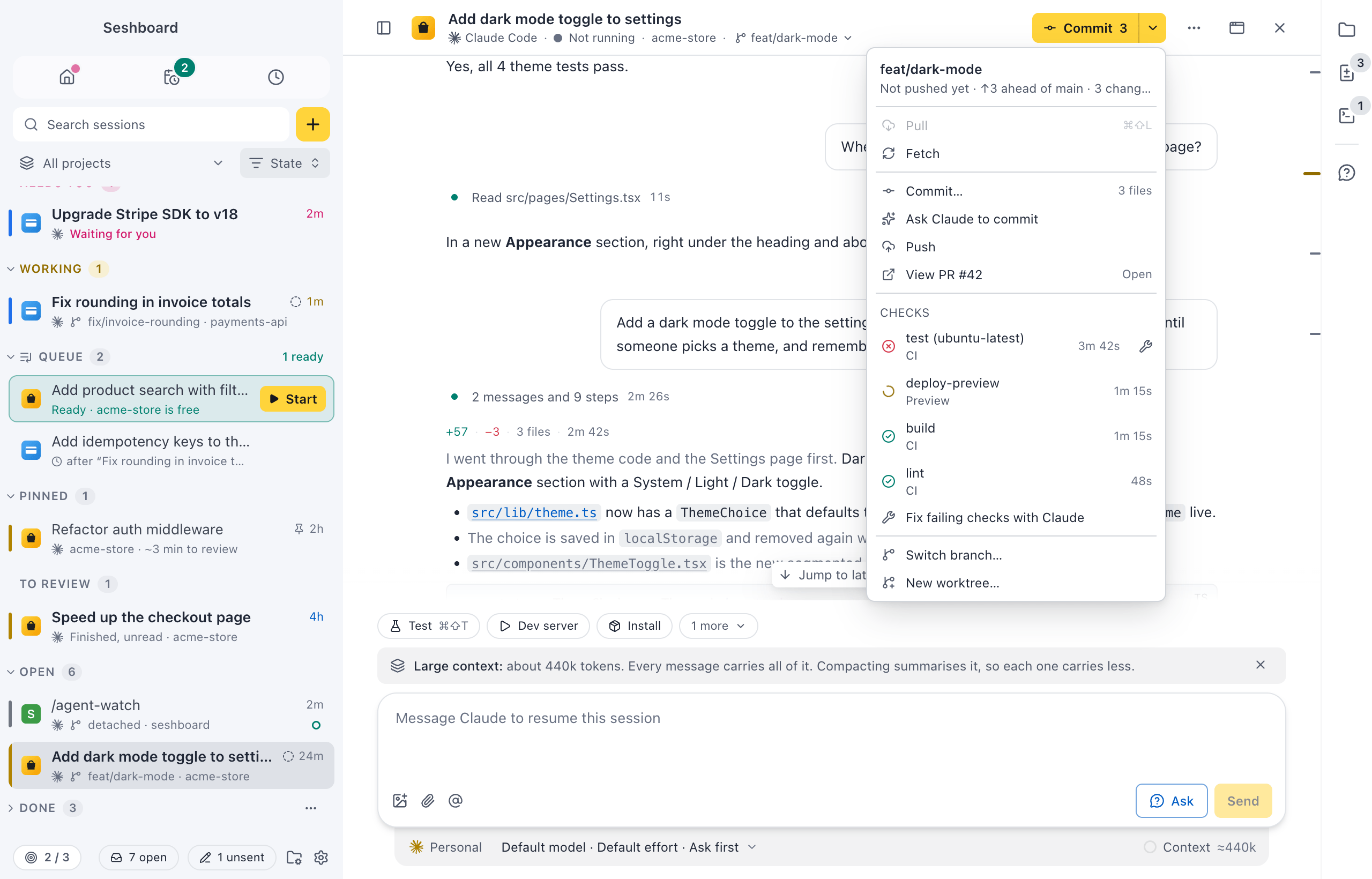
See what Claude changed in the Changes panel (Command, Shift, DControl, Shift, D): stage, unstage or revert files, and open any diff inline. Comment on lines as in a pull request review, and send all your comments to Claude at once. Changed images show before and after. The git button offers the next step: commit, push or create a pull request.
Once the pull request is open, its checks show on the same button, and the pull request opens in the browser beside the session. When a check fails, let Claude fix it. A terminal per session is one key away (Command, JControl, J).
Files
Read the code without leaving the session
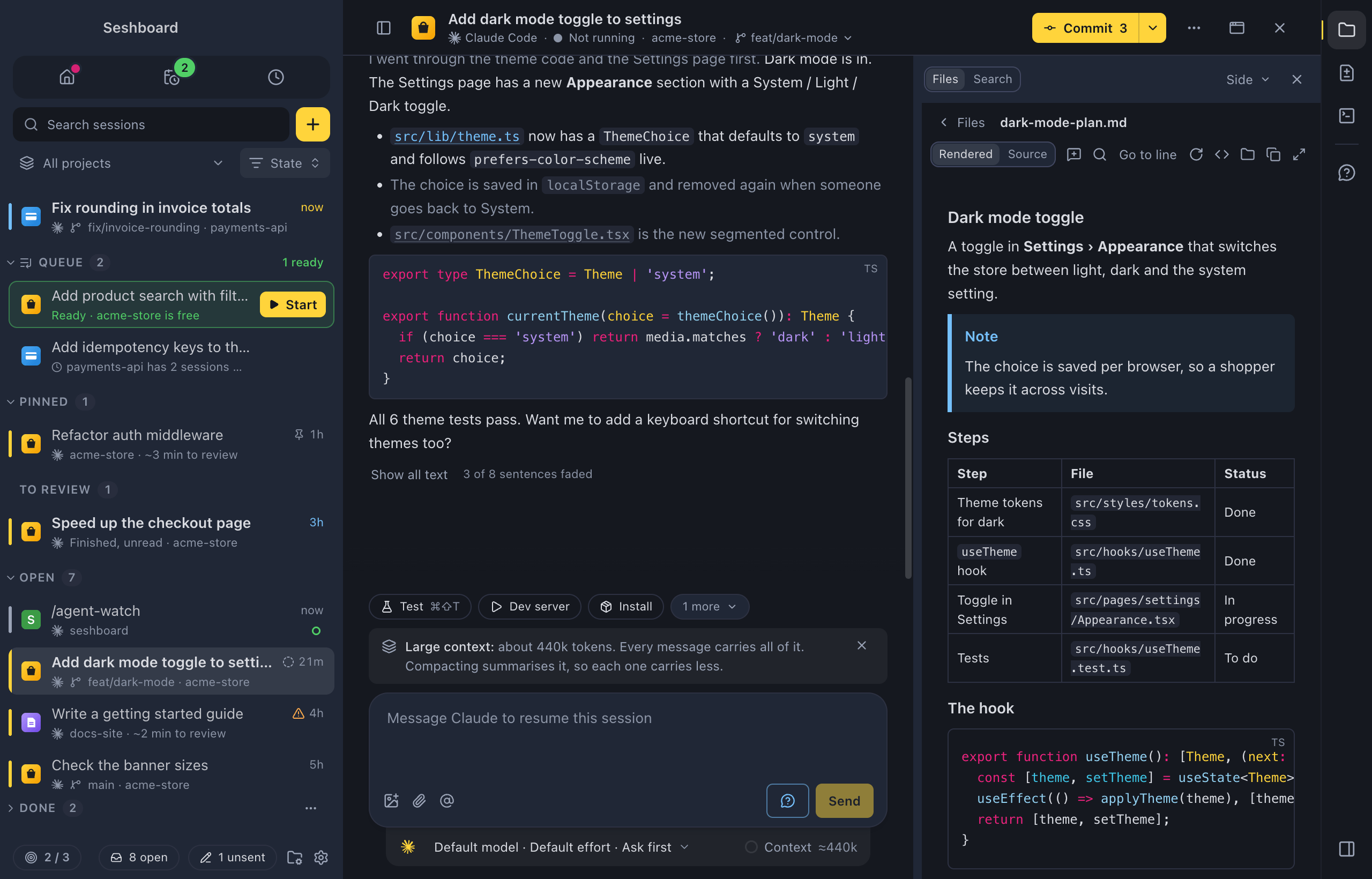
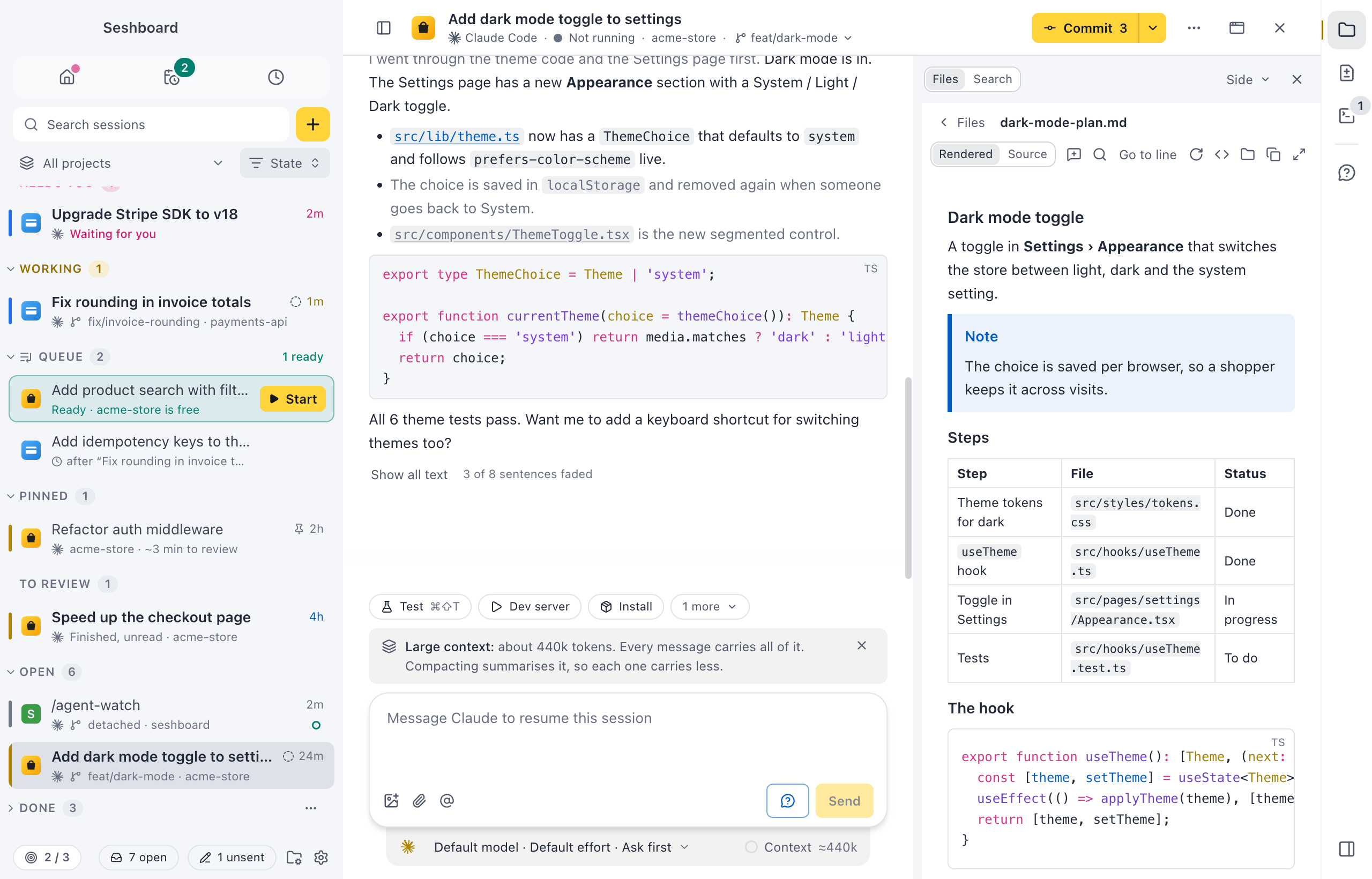
Every session has a rail of tools at its right edge: Files, Changes, the terminal, the browser and the apps you pin, each with a badge for what is in it. Files shows the project as a tree, opens any file beside the conversation and adds the lines you select to your message.
Quick open (Command, Option, PControl, Alt, P) finds a file by part of its name. Search in files (Command, Option, FControl, Alt, F) looks through all of them, and Claude can get the results in one click.
Anywhere
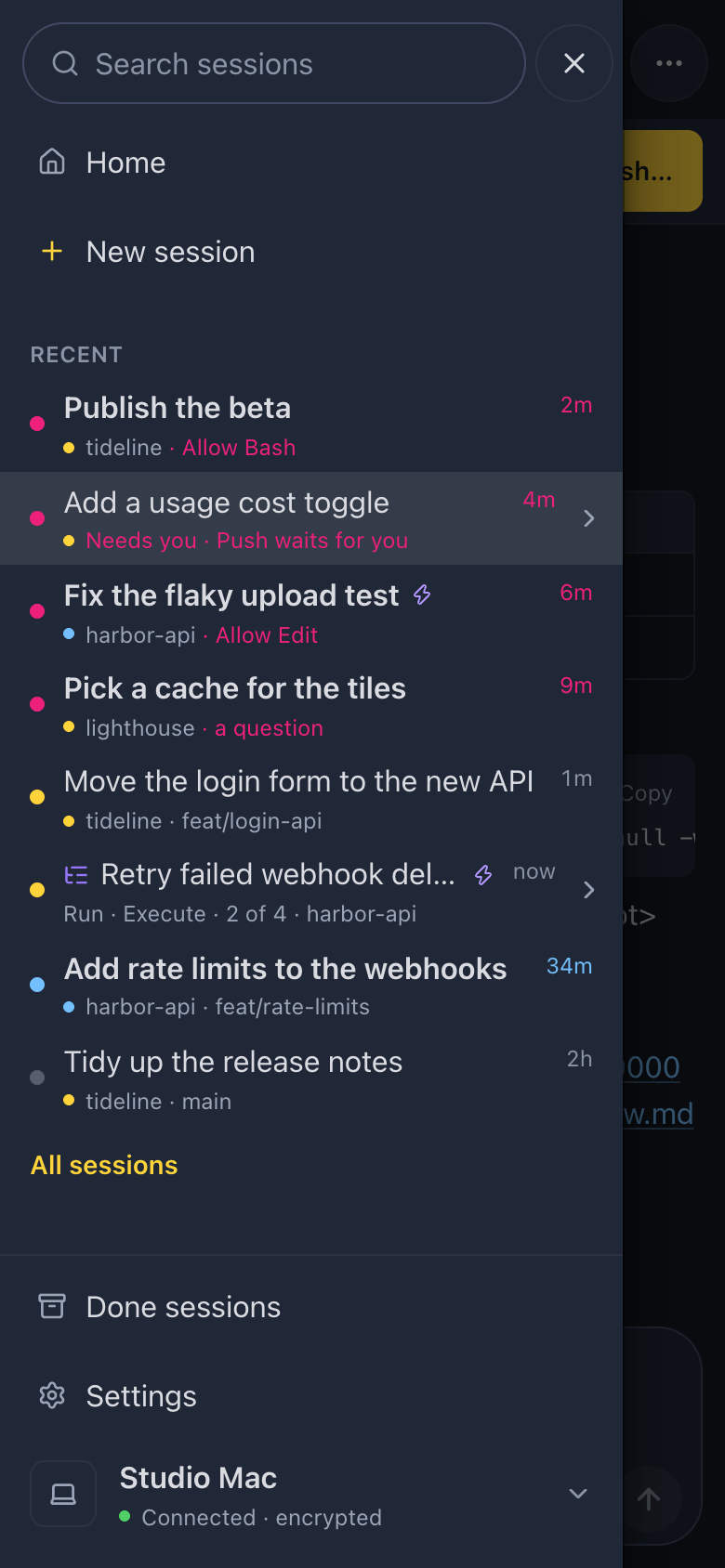
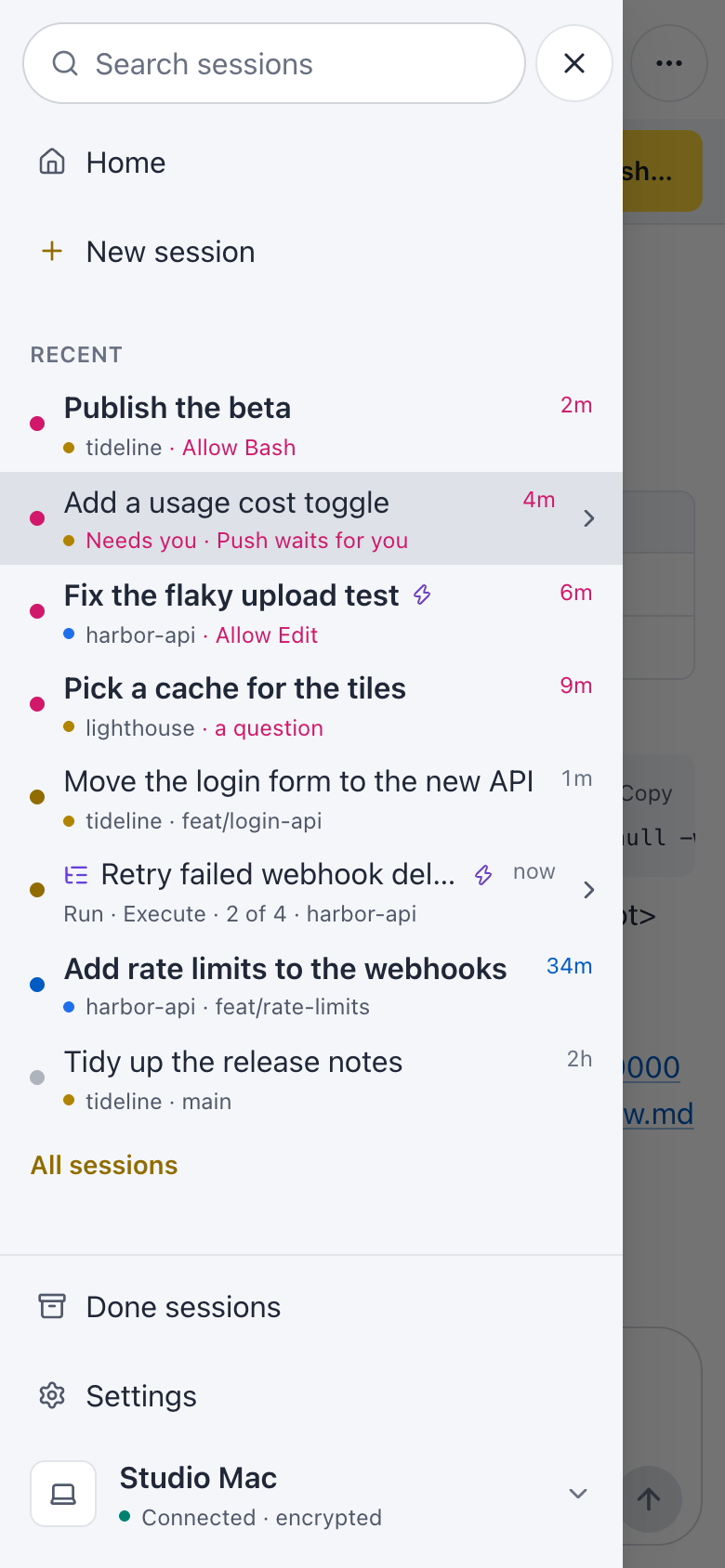
Answer Claude from your phone
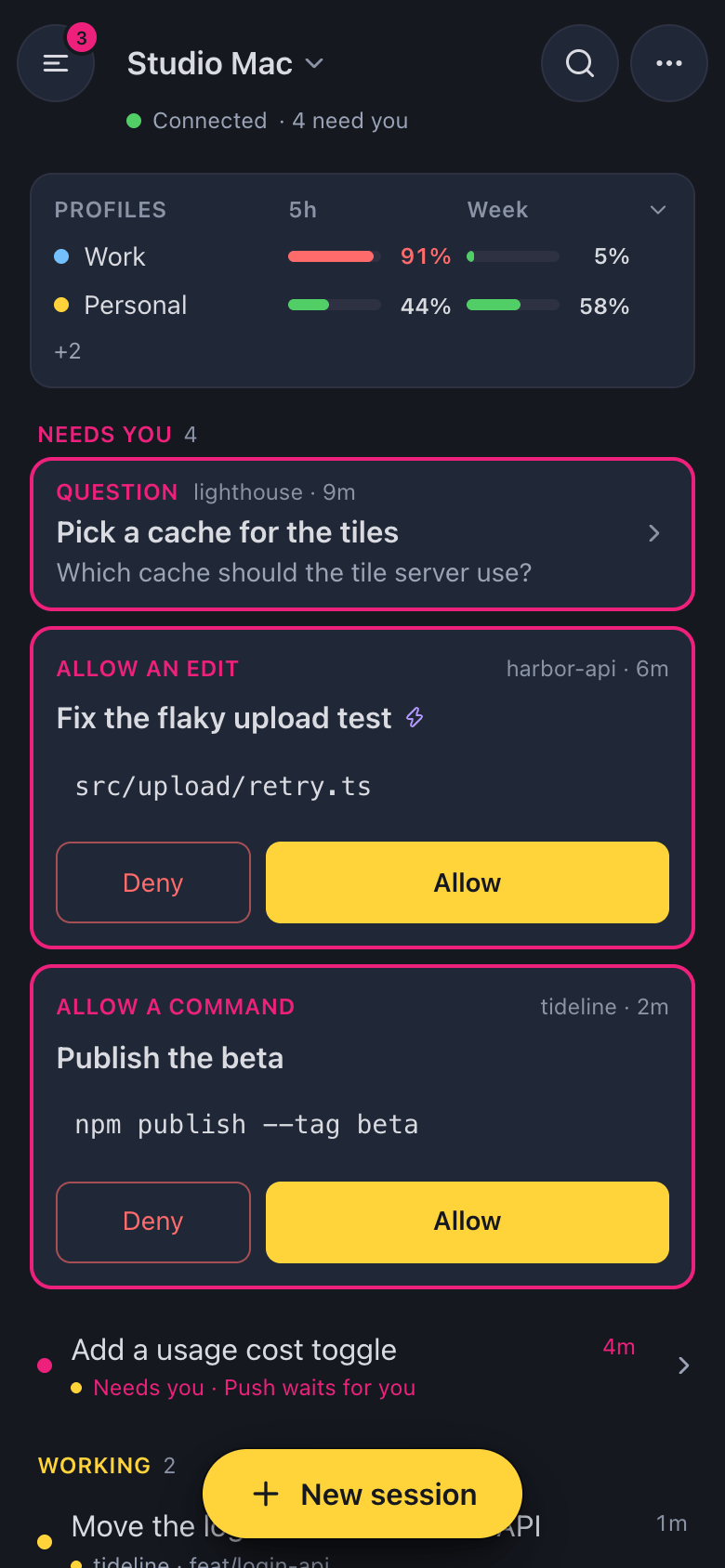
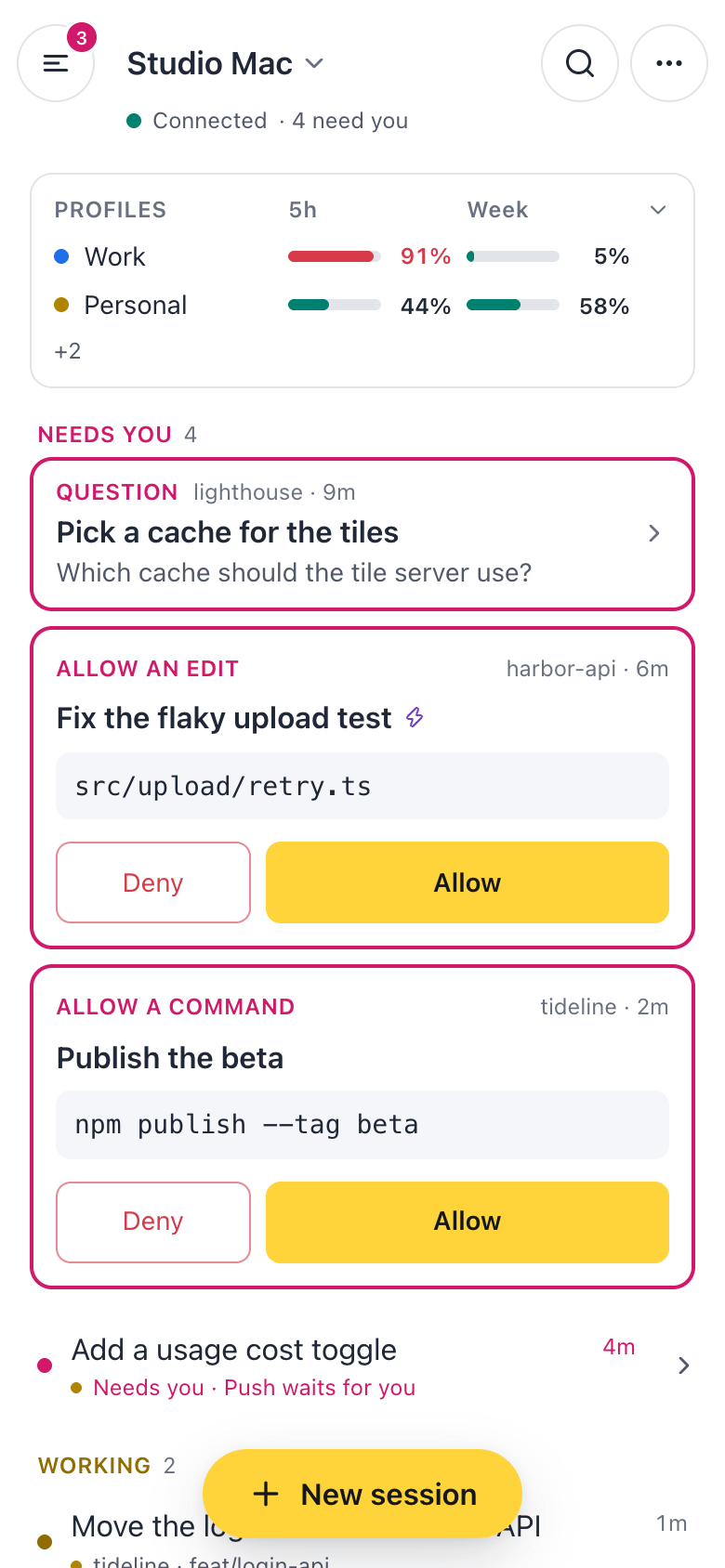
Turn on Remote and pair your phone. Follow your sessions, allow what Claude asks, send the next prompt or start a new session, wherever you are. Your phone gets a notification when a session needs you.
Tap Listen and your phone reads a reply aloud, with its own voice. Swipe a session to Mark as unread and come back to it later.
Have a laptop and a desktop? Their sessions show in the same sidebar, and New session can start one on the other computer.
Accounts
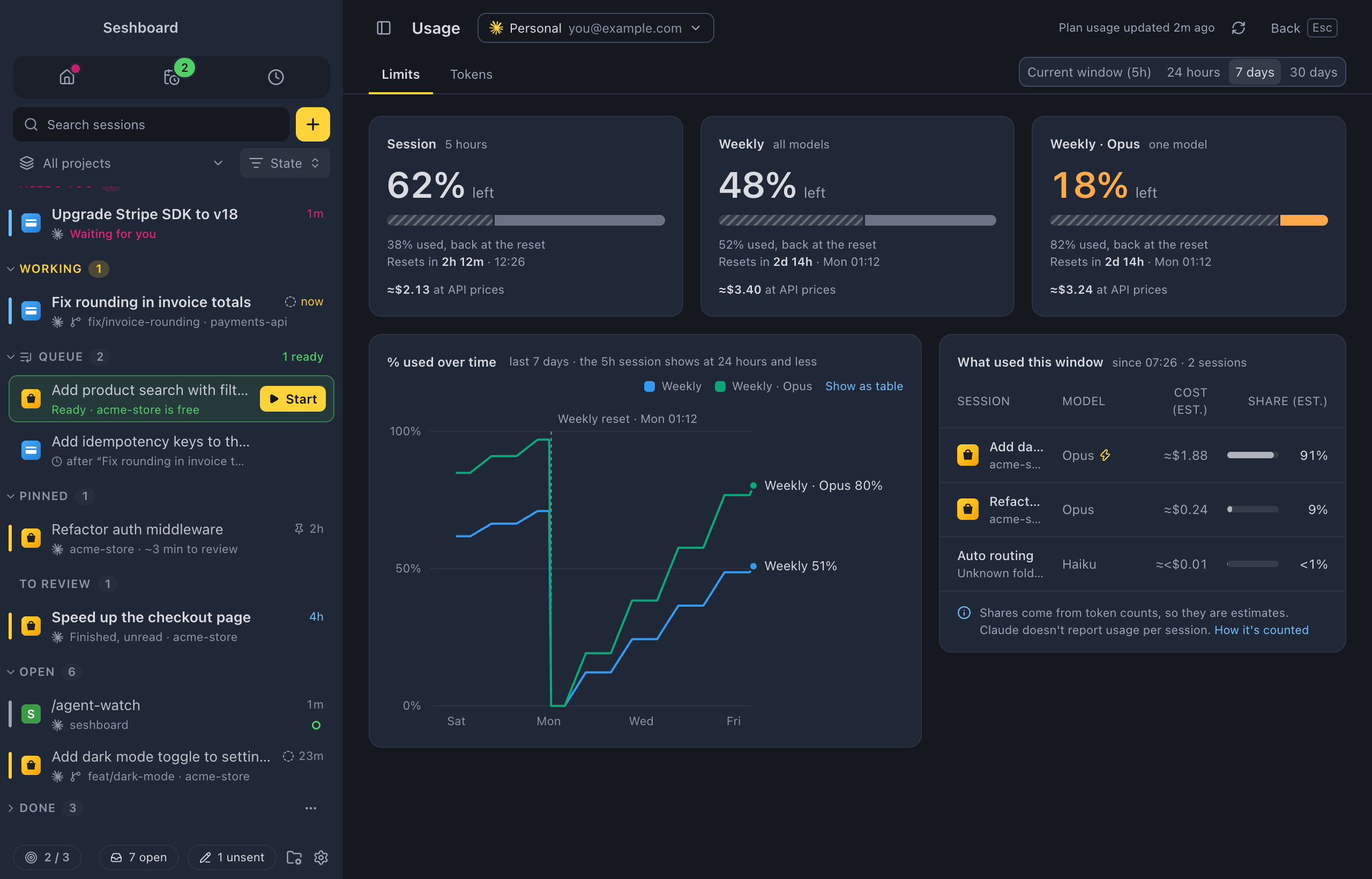
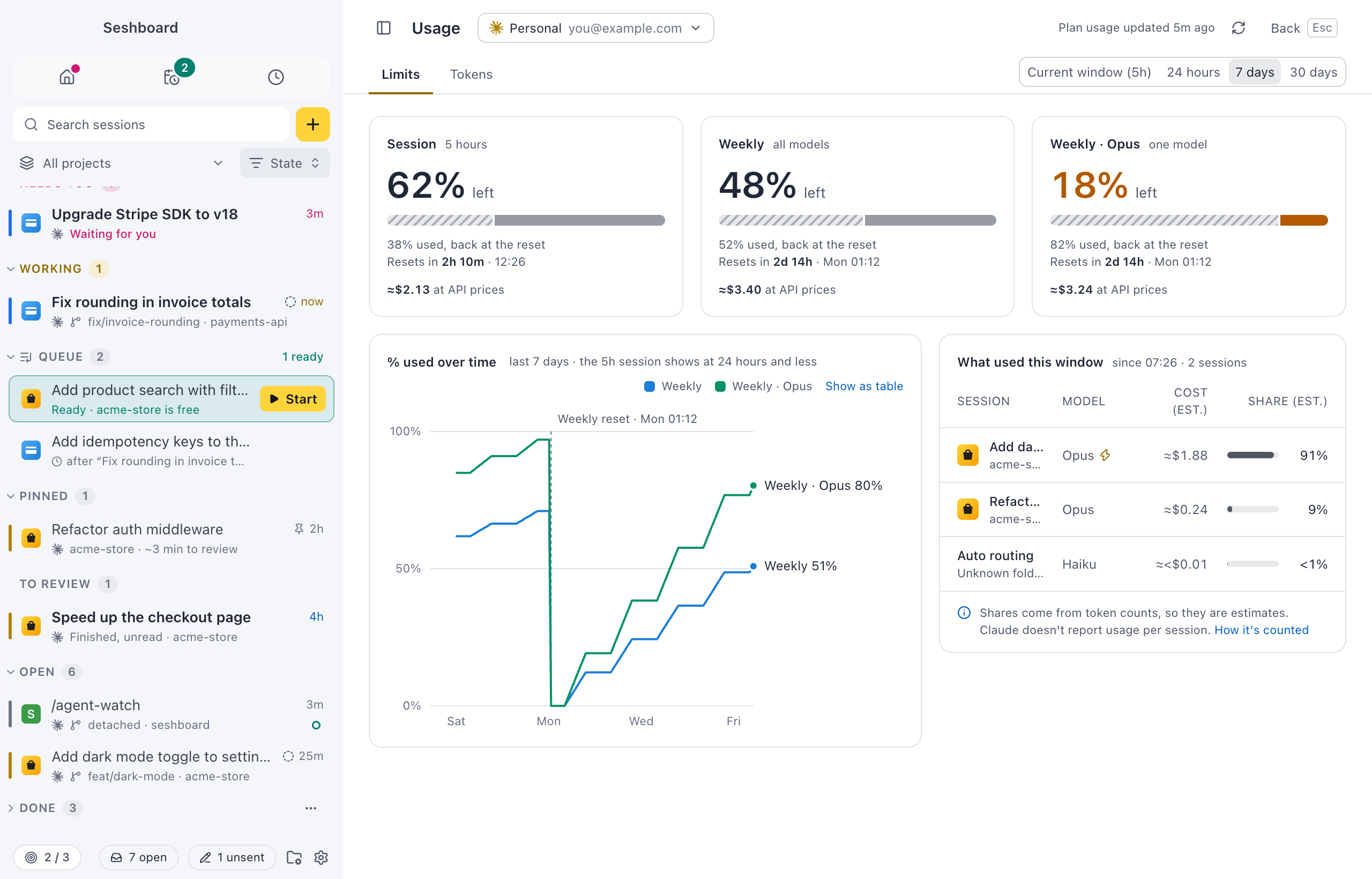
Every account, and what it used
Add a profile for each account: a personal Claude plan and a work one, GitHub Copilot, OpenAI Codex or Google Antigravity. Each session shows which agent and account it uses, and a project can always start on the same one.
See what is left of your 5-hour and weekly limits, Codex’s windows or Copilot’s premium requests, when they come back, and which sessions, projects and models used them.
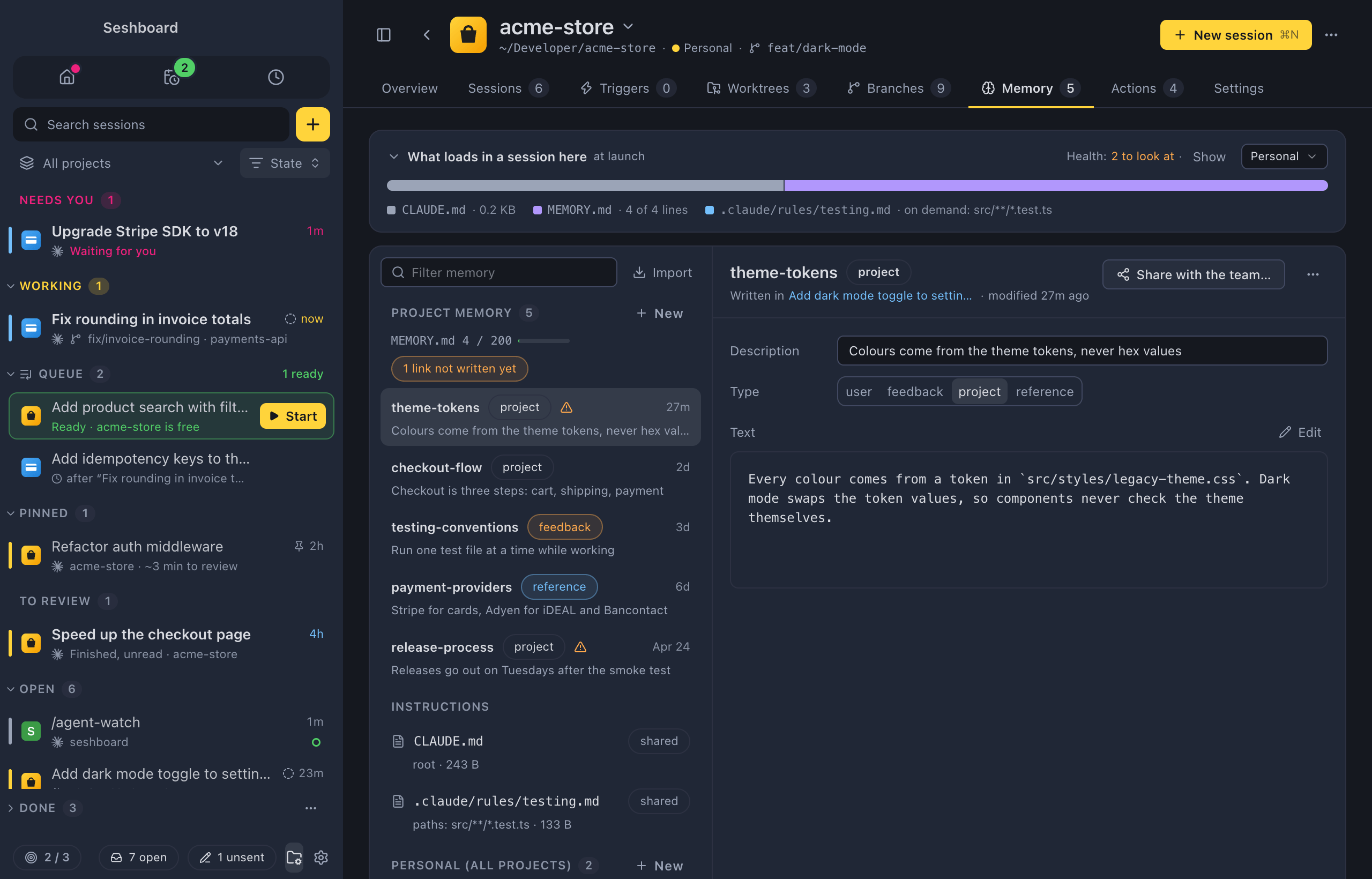
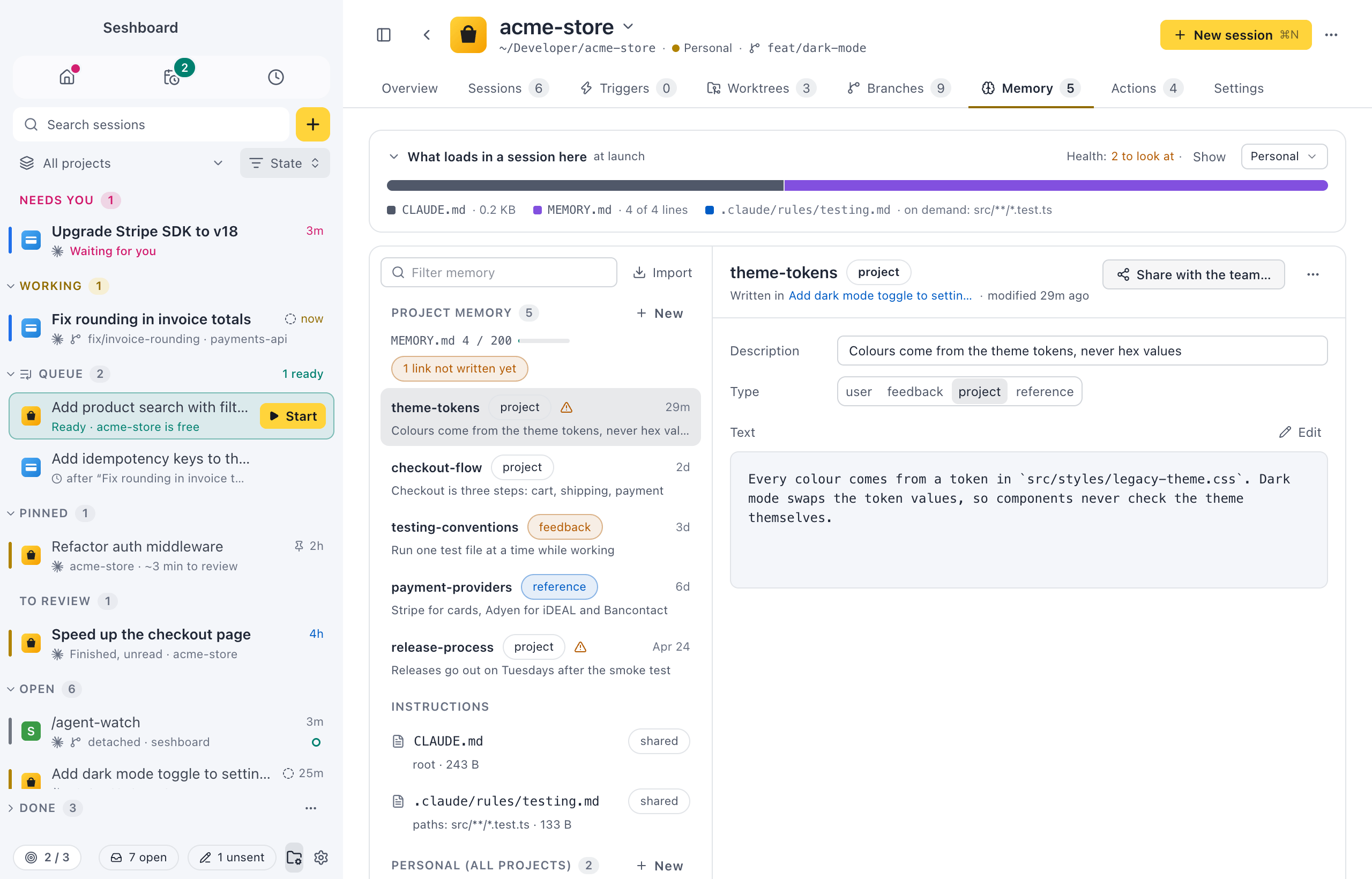
Memory
What Claude remembers, in plain Markdown
See and edit what Claude Code remembers about each project, and what loads at the start of every session. Share a memory with the team in CLAUDE.md, or bring your memory over from the Claude app.
Everything stays plain Markdown where Claude Code already looks, so it works the same in the terminal.
Made for the keyboard
Every main action has a shortcut, and the command palette has the rest.
- Command, KControl, KRun any command
- Command, PControl, PGo to a session or project
- Command, NControl, NStart a new session
- Command, Shift, UControl, Shift, UNext session that needs you
- Command, Shift, FControl, Shift, FSearch every conversation
- Command, Shift, NControl, Shift, NAsk a quick question
Watch the one-minute tour
And a lot more
Small things that save you time every day. Each card opens its page.
- Visuals in repliesNewDiagrams, charts and small tools that Claude, Codex and Copilot draw in their replies, and the pages of MCP Apps.
- What replies showNewFormatting, Mermaid diagrams, maths, links and images in Claude's replies, and copying from them.
- GitHub issues and pull requestsNewType
- Saved promptsNewSave a prompt with blanks, pick it with / or in New session, fill in the blanks and send.
- Quick questionsAsk Claude something without picking a project, in a scratch folder of Seshboard's own.
- Unsent messagesWhat you type and don't send is kept, also after you quit, and easy to find again.
- LinksOpen Seshboard from a seshboard:// link, to start a session with a prompt or jump to an existing one.
- Clone from GitHubNewStart a project from a GitHub URL. Seshboard clones it into a folder you set, adds it as a project and runs your first prompt there.
- CommandsNewSee the commands Claude runs in the background in a panel next to the conversation, with their command line, how they ended and their output.
- Claude Code modsNewPlugins that add UI to your sessions. Seshboard draws their bands, panes, statuses and toasts, each with the mod's name.
- SearchSearch every conversation, or find words in the one you are reading.
- Built-in themesPick light or dark mode and one of the themes that come with Seshboard.
- Back up and move your settingsExport your Seshboard setup to a file and import it on another computer or after a reset.
- Permissions and questionsApprove or deny what Claude wants to do, answer its questions and review its plans, right in the conversation.
- Auto modelLet Haiku read the first prompt of a new session and pick the model and effort for it. Picked once, shown in the session, easy to undo.
The VS Code companion
The Seshboard Companion extension sends what you are looking at in the editor to a session: the lines you selected, files, problems and terminal output. It also works in Cursor and Windsurf. Nothing goes to Claude until you press send.
eliostruyf.switchboard-companion
Why Seshboard?
Sesh is short for sessions: the sessions your agents run. Board is the one app where you manage them all, with the tools you follow them up in.
Try it on the sessions you already have
Seshboard picks up your existing Claude Code sessions the moment it opens. Add a Copilot, Codex or Antigravity profile, and their sessions show up too.
On Linux? Get the AppImage, .deb or .rpm: install on Linux.
brew install --cask estruyf/tap/seshboard