
Home
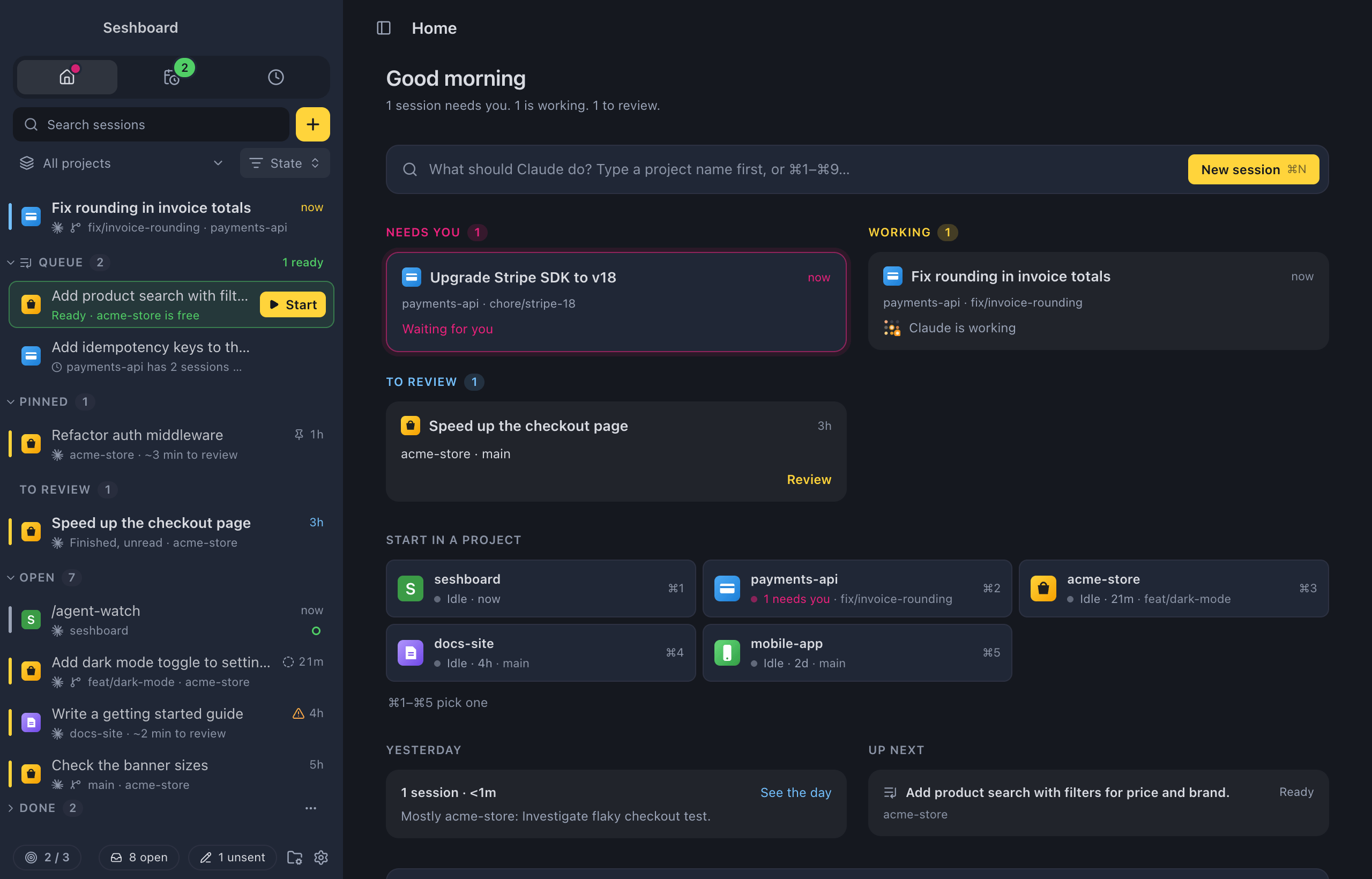
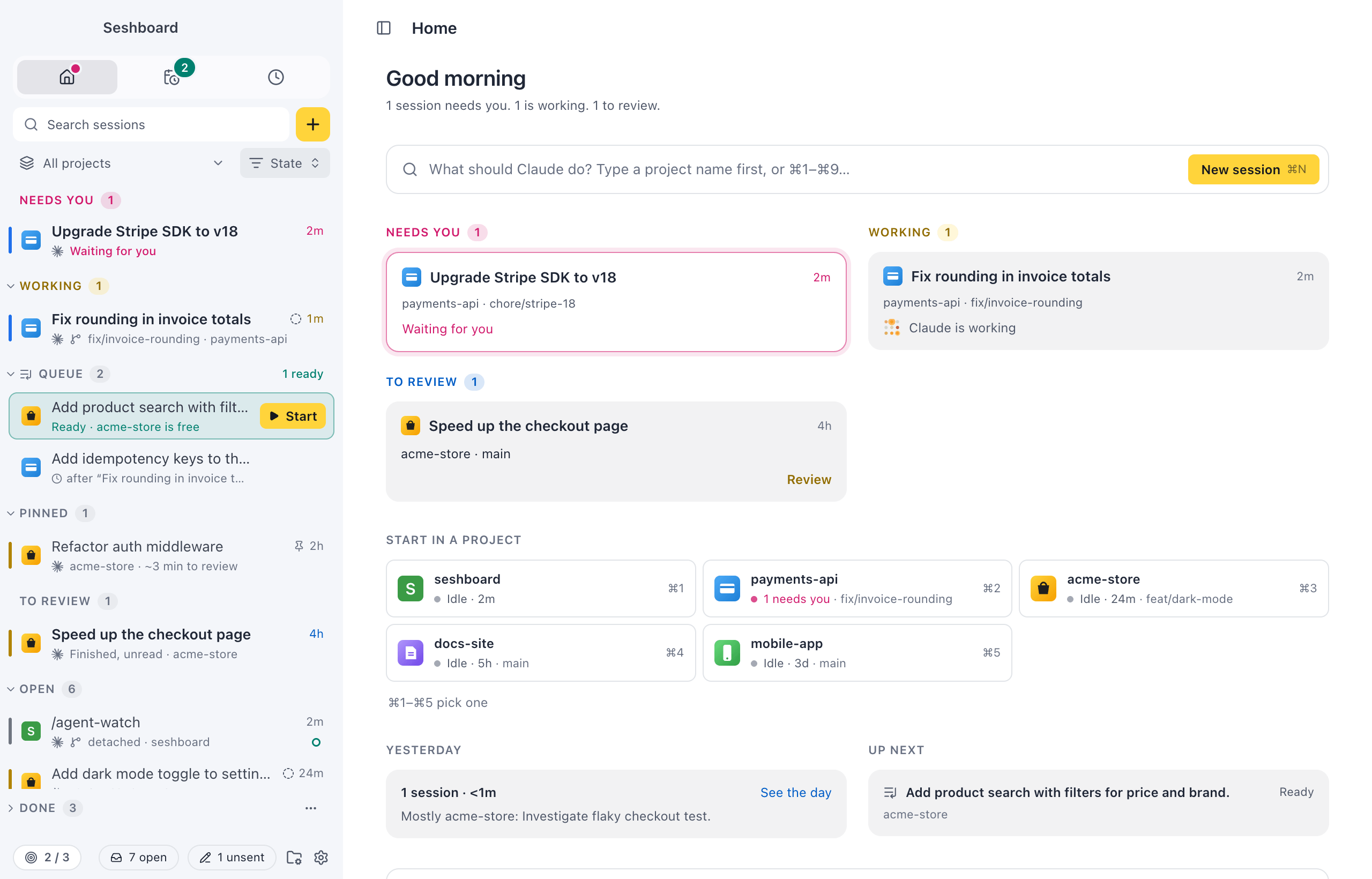
Home is what the window shows when no session is open. It uses the whole window: a box to start new work, lanes for what needs you, what is working and what to review, and under them your projects and usage. On a large screen it grows as wide as New session, with the same margins, so nothing jumps when you go from one to the other.
Open it
Section titled “Open it”- Press Command, Shift, HControl, Shift, H.
- Click the house in the row of icons at the top of the sidebar (also in the minimal sidebar).
- Choose Home in the command palette.
- Close the session you have open with the × in its header, or Close session in the command palette.
Seshboard also opens on Home, unless you choose otherwise in Settings.
Start from the box
Section titled “Start from the box”Type a project’s name and what Claude should do, then press ReturnEnter: New session opens with both filled in. Press Command, 1 to Command, 9Control, 1 to Control, 9 to pick one of your projects by its number.
The lanes
Section titled “The lanes”Every card opens its session.
- Needs you Needs you: a card per session that waits for you, with what it asks for (“Permission: Bash”, “Question”, “Plan to review”).
- Working Working: a card per session Claude is working on, with what it is doing.
- To review: finished sessions you haven’t read, newest first. A card opens its session with the catch-up, and the lane can start going through them one by one.
In a narrower window the lanes stack. When an empty Needs you doesn’t fit, the line under the greeting says it instead.
Under the lanes
Section titled “Under the lanes”- Start in a project: your projects as rows, in New session’s order and with the same keys. Click one to open New session on that project.
- Yesterday: your sessions and time on the last day you worked (it says the weekday when that wasn’t yesterday), with the day in short and See the day, which opens Activity on it.
- Up next: the one thing Upcoming has next, with when. Click it to open Upcoming on it.
- Unsent: the messages you typed and didn’t send, each with Open. See Unsent messages.
- Queue: your first queued prompts, with Start on the ones that are ready. See all in Upcoming opens the whole queue. See Queue.
- Schedules: your first scheduled sessions, each with its rule, its last and next run, Run now and ⋯. See all in Upcoming opens every schedule, and Schedule a session opens New session with Start set to Schedule…. They run while Seshboard is running, also with its windows closedwhile a Seshboard window is open. See Schedules.
- Usage, in a column on the right: each profile’s plan usage. A profile with sessions today keeps its card, and quiet ones take one line each. Click the usage to see what used it in the Usage view.
Before you have projects
Section titled “Before you have projects”Without projects, Home says Add your first project with an Add a project button. See First launch.
Settings
Section titled “Settings”- Settings, General: On startup picks what Seshboard shows when it opens: Home (the default), The last session or New session. Settings, Projects: Project order picks the order of your projects: Recent (the ones you used last) or Your order (the order you set in Projects).
- Show sessions from other apps in Settings, Sidebar adds sessions from the terminal, Claude desktop and your editor to Needs you and Working.
Related
Section titled “Related”- UpcomingNewOne view for everything queued, scheduled and triggered, and your reminders, across all your projects, with the scheduled runs of the next 7 days.
- ActivityNewLook back at what you did per day, per week or over any range: your sessions, turns, time, commits and pull requests, per project, ready for your standup.
- Catch-upA short briefing over a session when it finishes, so you can decide what to do next in a few seconds.
- QueueKeep prompts to start later, in the order you want them, and see when each one is ready.
- SchedulesNewStart a session from a prompt once, or at set times every day, on weekdays, on the days you pick or once a month.
- Unsent messagesWhat you type and don't send is kept, also after you quit, and easy to find again.
- UsageSee what is left of your plan, when it comes back, and which sessions, projects and models used your tokens.