
Changes
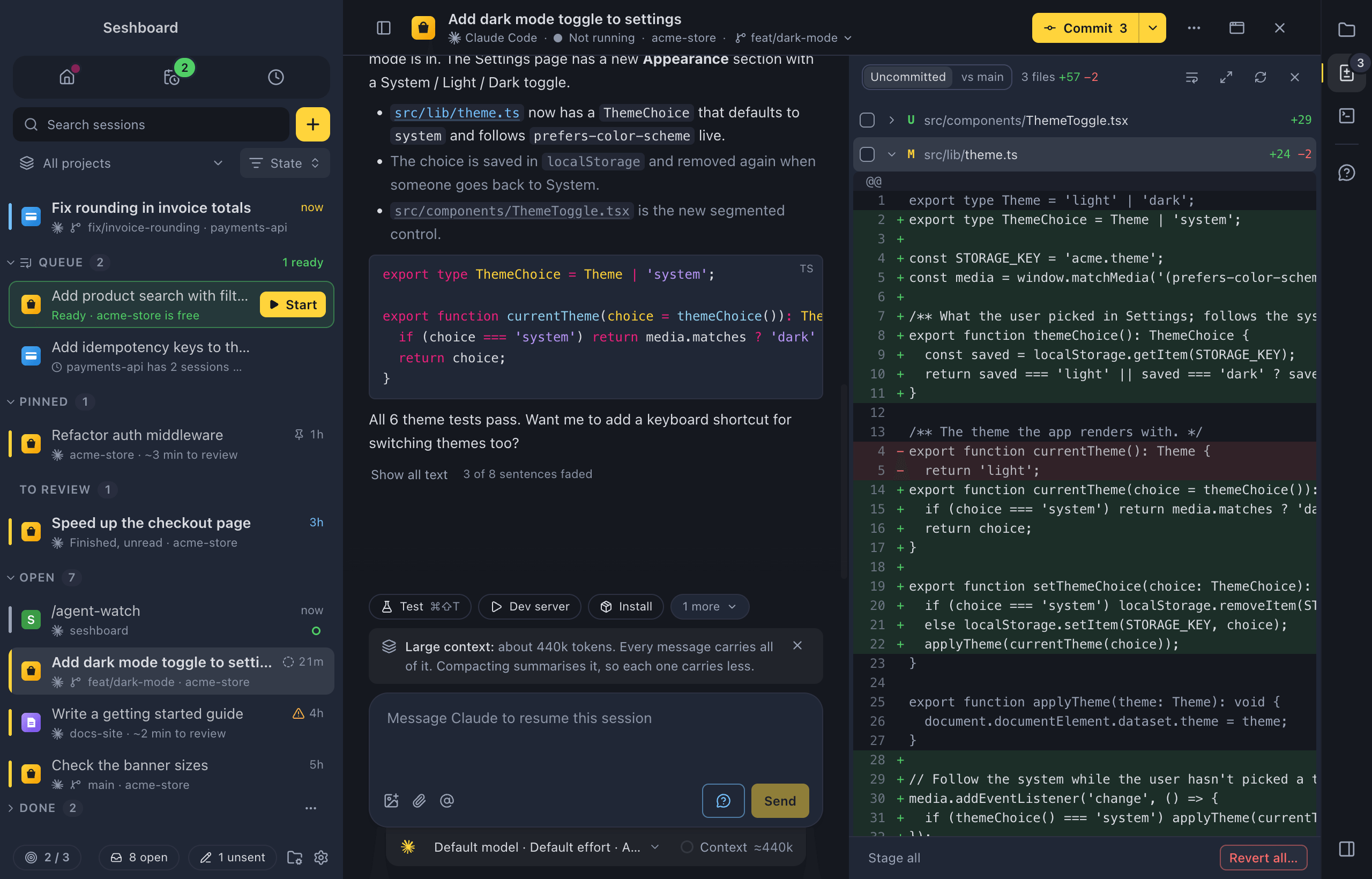
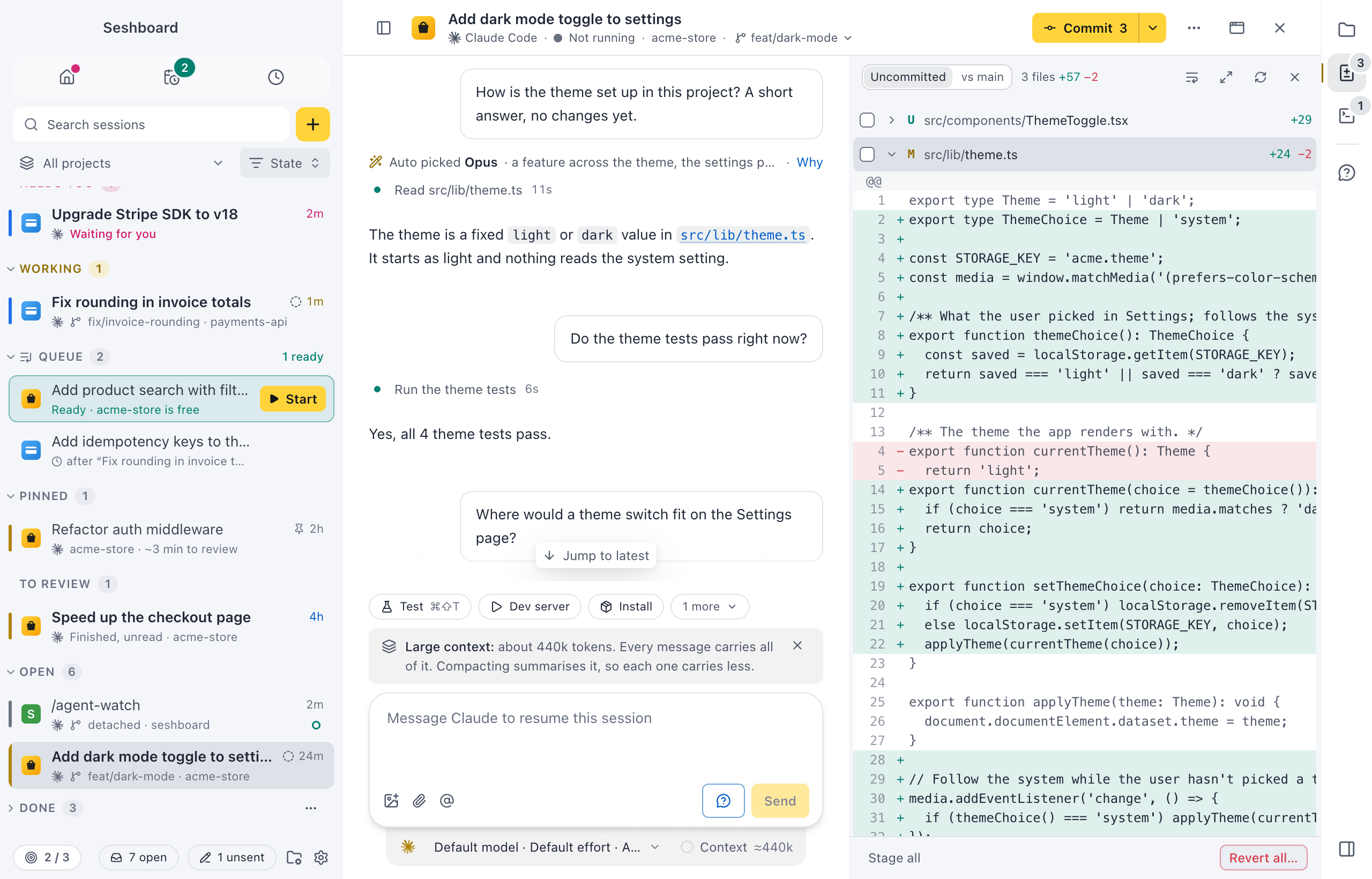
Open the Changes panel to review what Claude changed before you commit it. It shows what changed in the session’s folder: what isn’t committed yet, or everything on the branch compared with its base branch. Open any file’s diff inline, stage or unstage files, or revert them.
Open it
Section titled “Open it”- Press Command, Shift, DControl, Shift, D to show or hide it.
- Click Changes on the session’s tool rail. Its badge shows how many files have changed.
- Run Toggle changes in the command palette (Command, KControl, K).
With Ask about this session open too, the two share the right side as tabs, Changes and Ask. Opening Changes brings it to the front and leaves Ask open behind it.
The panel is there for sessions whose folder is in a git repository. On Windows it needs Git for Windows, and it lists files with paths over 260 characters too.
How to use it
Section titled “How to use it”What it compares
Section titled “What it compares”At the top of the panel, choose what to show:
- Uncommitted: changes that aren’t committed yet.
- vs <base> (for example vs main): everything since this branch left its base branch, committed or not.
Next to it, the panel counts the files and the lines added and removed.
The file list
Section titled “The file list”Each file shows its status, its path and how many lines were added and removed:
| Letter | Meaning |
|---|---|
| A | Added |
| U | New, not tracked yet |
| M | Modified |
| R | Renamed |
| D | Deleted |
| ! | Conflict |
Click a file to open its diff inline, and again to close it. Hover a file, or focus it with the keyboard, for Open in editor and, in Uncommitted, Revert this file….
Images
Section titled “Images”A changed PNG, JPEG, GIF or WebP image shows as the image before and after, side by side, or one above the other in a narrow panel. Each side has its type, its size and its size in pixels. A new or deleted image shows on its own, as Added or Deleted.
Comment on lines
Section titled “Comment on lines”Read the diff like a pull request and tell Claude what should change, line by line.
- Click a line number in a diff. Drag over the numbers, or Shift-click another one, for more lines. Or select lines in the diff and press Command, Shift, MControl, Shift, M.
- Write what should change in What should change here? and click Comment (Command, ReturnControl, Enter). Cancel (Escape) leaves it out.
- Add more comments, in this file or others. The file list shows how many each file has, and a bar at the bottom counts them all, such as 3 comments on 2 files.
- Click Submit, or choose Submit review comments in the command palette.
Submit puts all the comments in the message box as one item, each with its file, its lines and the code, under a short prompt. Nothing is sent yet: you read it and send it. While Claude works, it goes to Up next like any message.
A comment shows under its lines. When Claude’s edits move those lines, the comment moves with them. When the lines are gone, the comment says changed since and shows the lines it was written on. Use the pencil to edit a comment and the bin to remove it. Clear removes them all.
Stage and unstage
Section titled “Stage and unstage”In Uncommitted, each file has a checkbox. Tick it to stage the file, untick it to unstage it. Stage all at the bottom stages every file; when everything is staged it says Unstage all. Stage all is in the command palette too.
What you stage is what Commit… in the git menu commits.
Revert
Section titled “Revert”- Click Revert this file… on a file, or Revert all… at the bottom of the panel. Revert all changes… in the command palette does the same.
- Confirm with Revert.
The uncommitted changes of those files are lost. New files go to the TrashRecycle Bin, so you can get them back from there.
Staging and reverting are only offered in Uncommitted. In vs <base> the panel is for reading.
Layout
Section titled “Layout”- Drag the panel’s left edge to make it wider or narrower. With the edge focused, Left Arrow or Right Arrow resizes it. Seshboard remembers the width.
- The expand button lets the panel fill the session view; click it again to go back to a side panel.
- The wrap button wraps long lines, or lets them scroll sideways.
- The refresh button checks git for changes again. The panel also follows along while Claude works.
The Changes panel lives on the right. With the terminal docked on the right too, they are tabs there.
Settings
Section titled “Settings”The Changes panel has no settings. Diff colours come from the theme: see Themes.
Related
Section titled “Related”- GitThe branch in a session's header, the git button with the next step for the branch, pull request checks, and finishing a worktree.
- Catch-upA short briefing over a session when it finishes, so you can decide what to do next in a few seconds.
- WorktreesSee every worktree of a project, which ones can go, and remove several at once after one confirmation.
- Code and terminal coloursHow a theme colours code blocks, diffs and the terminal panel.