
Done
What you finished, and what went quiet, sits in Done, out of the way, so the sidebar shows what is still yours. Nothing is deleted: a session in Done comes back as soon as there is something new, and you can open, continue or reopen it at any time.

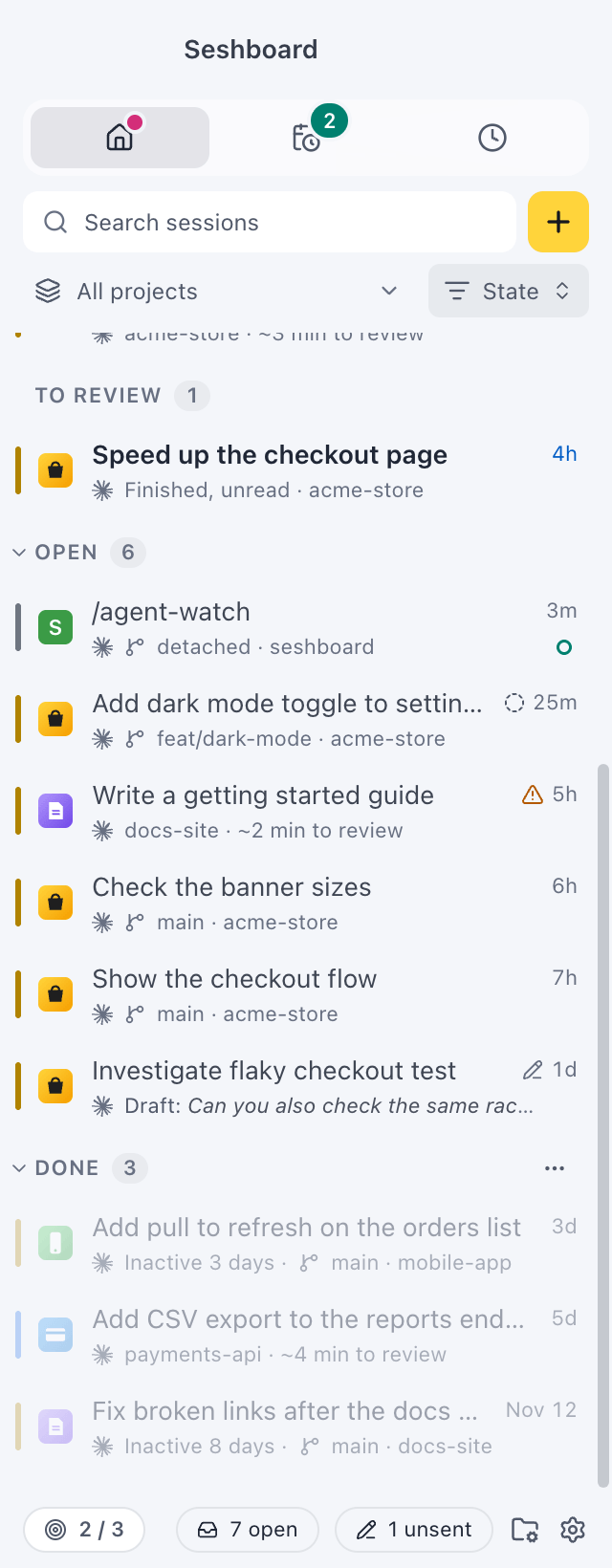
Open it
Section titled “Open it”While it is closed, Done is docked at the bottom of the sidebar with its count. Click it to open it: it slides up right under your other sessions. Click its header again to close it. With the header focused, → opens it and ← closes it.
While you type in Search sessions, sessions in Done that match show under the rest, even with Done closed.
Each row says why it is there: Done when you marked it, Merged #123 when its pull request merged, or Inactive 3 days when it went quiet. Inactive ones are dimmed, so they don’t look finished by you.
What goes to Done
Section titled “What goes to Done”On its own. A finished session moves to Done after 3 days without activity. Choose the number of days in Settings › Sessions. It stays in the main list while it is:
- working, or waiting for you;
- failed;
- finished and unread;
- open in Seshboard;
- pinned;
- holding an unsent message or a queued prompt;
- left with loose ends, such as files not committed.
When its pull request merges. The session goes to Done and its row says “Merged #123”. You get one toast for them the next time you’re in Seshboard, with Undo. A session that is pinned, working, waiting for you, open in Seshboard, active since the merge or with loose ends left stays where it is, and one you reopen stays open. Turn it off with Move to Done when its pull request merges in Settings › Sessions.
By you. Mark a session done to put it away now:
- Click the checkmark on its row, or press E on it.
- Right-click it and choose Done (until new activity).
- Middle-click a finished session (middle click). Sessions that are working, waiting for you or failed stay where they are.
- In its catch-up, choose Done (E).
- With the session open, choose Mark as done in the command palette.
- Select several sessions with Command, clickControl, click and choose Done in the bar at the bottom of the sidebar, or right-click one of them.
You can mark a session done even while Claude is working on it. It stays in Done while it works, and comes back when it has finished, so you see the result. A session that needs you or failed always shows in the main list. If it has loose ends, the toast says what’s left.
Marking a session done unpins it. Marking the session you have open closes it; with two sessions side by side, the other one takes the full width.
Bring a session back
Section titled “Bring a session back”- New activity brings it back by itself: when you send it a message, or it finishes something new.
- Reopen it from its row, its menu, the command palette, or with several selected (Reopen in the bar at the bottom). A reopened session stays in the main list until it has new activity, however long it was quiet. After that, it goes to Done again once it has been quiet for the days you set.
- Select all on the Done header (while selecting) picks every session in Done at once.
Manage them
Section titled “Manage them”Click the ⋯ on the Done header:
- Manage sessions… opens Settings › Sessions with only sessions in Done listed, grouped by month, to reopen them or move many to the TrashRecycle Bin at once.
- Done settings… opens the same page on the number of days.
Delete a session
Section titled “Delete a session”To remove a session for good, delete it:
- Right-click it and choose Delete session…, or press Command, DeleteControl, Backspace in the sidebar.
- With several selected, choose Delete… in the bar at the bottom.
- With the session open, choose Delete session… in the command palette.
After you confirm with Move to TrashRecycle Bin, the conversation and any subagent transcripts go to the TrashRecycle Bin, so you can still get them back from there.
Delete old sessions in Done
Section titled “Delete old sessions in Done”Sessions in Done stay on disk until you delete them. To have Seshboard move them to the TrashRecycle Bin after some time, turn on Delete Done sessions in Settings › Sessions. It is off by default and asks first.
Claude Code also deletes old transcripts by itself, after 30 days unless you changed cleanupPeriodDays. Settings › Sessions shows what each Claude profile uses and lets you change it.
Settings
Section titled “Settings”Settings › Sessions sets when sessions move to Done and when they are deleted. Settings, Backup can include your sessions in Done in an export when you tick them.
Related
Section titled “Related”- SessionsWhen an opened session is marked read, when finished sessions move to Done, moving old Done sessions to the Trash, Claude Code's own cleanup, and an overview of every session.
- Pinned sessionsKeep the sessions you come back to at the top of the sidebar.
- Catch-upA short briefing over a session when it finishes, so you can decide what to do next in a few seconds.
- Back up and move your settingsExport your Seshboard setup to a file and import it on another computer or after a reset.