
The sidebar
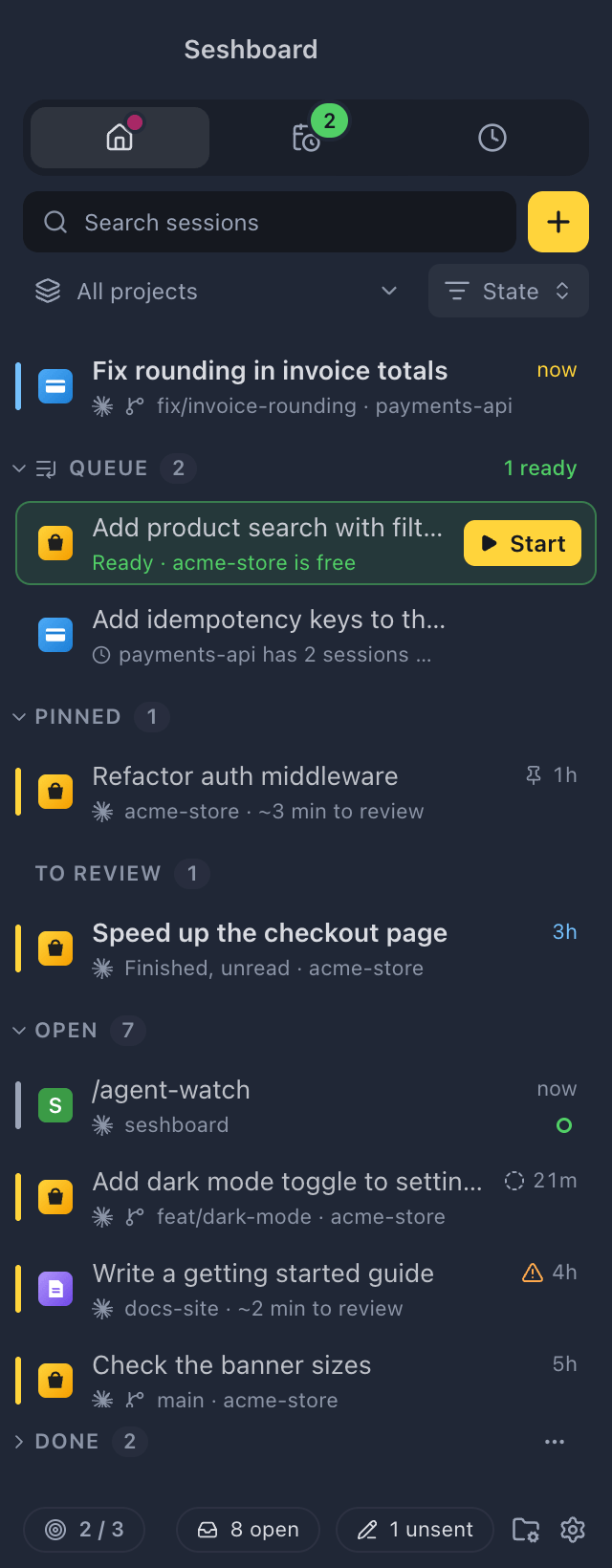
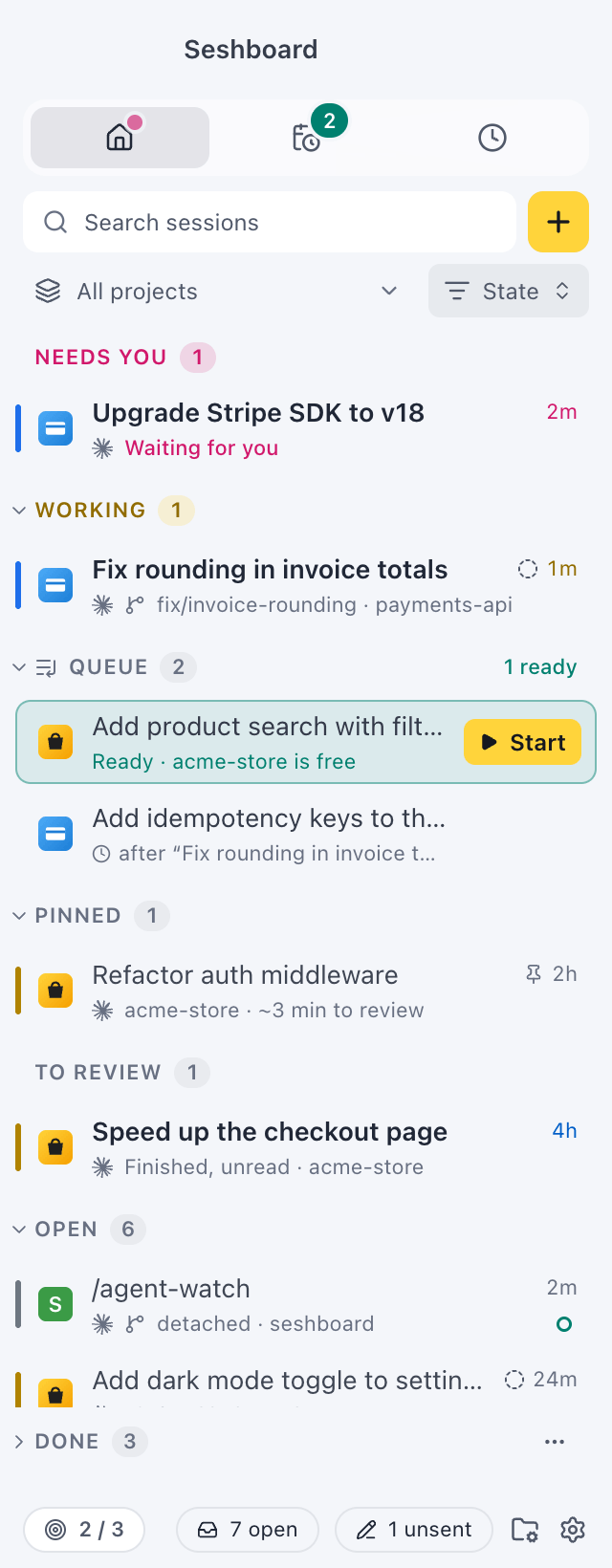
The sidebar lists your sessions across every project, grouped by what needs attention first and then by what is still yours to finish. It is where you see at a glance which sessions are working, which wait for you, and which you still have to look at.
Open it
Section titled “Open it”The sidebar is always on the left of the window. Press Command, BControl, B or click the sidebar button at the left of a view’s header to collapse it or open it again. The command palette has Toggle sidebar, Open sidebar, Minimize sidebar and Close sidebar.
What’s in it
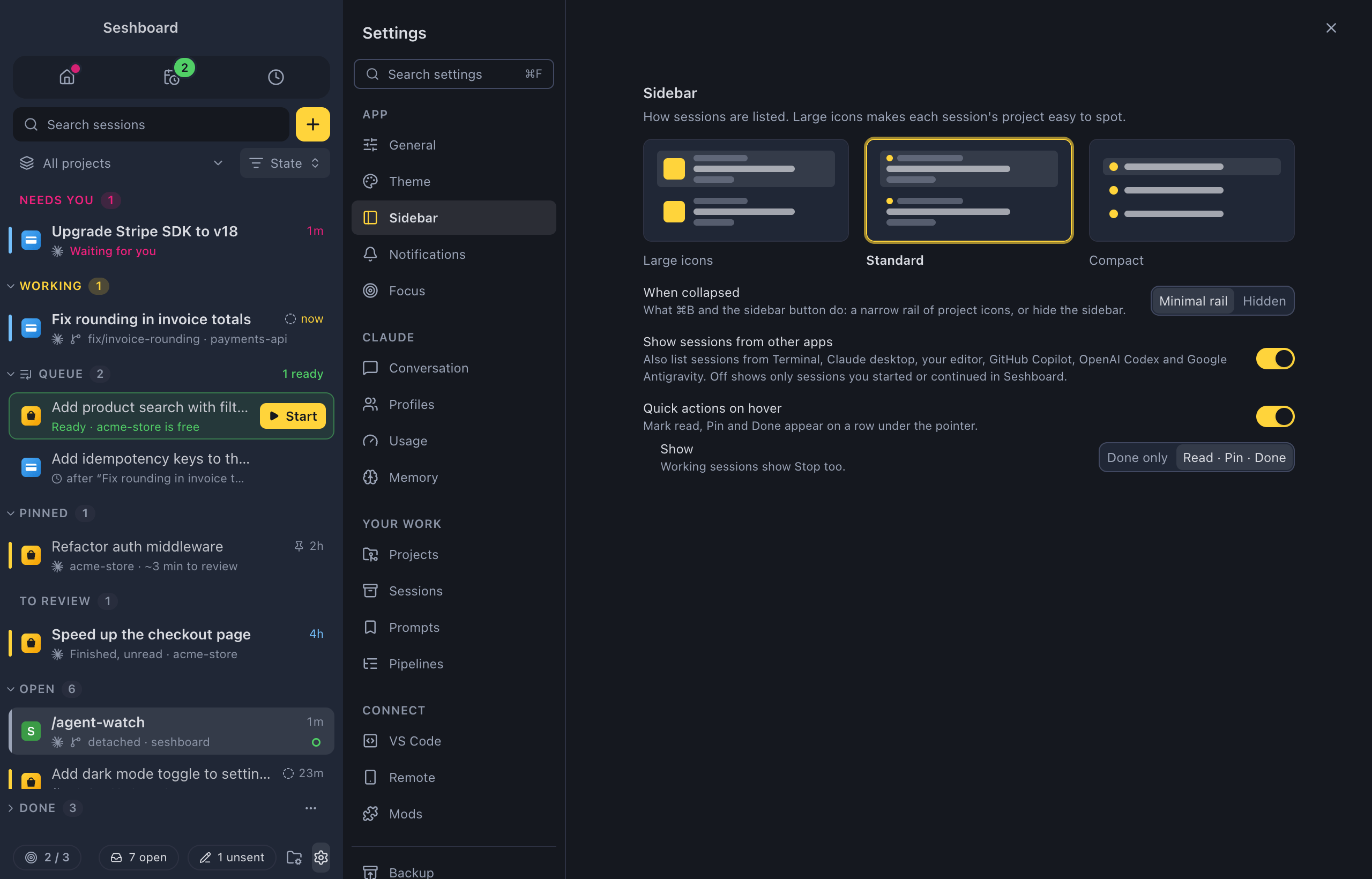
Section titled “What’s in it”At the top, a row of icons opens the views. Point at one to see what it holds:
- Home opens Home (Command, Shift, HControl, Shift, H). It has a dot while a session needs you.
- Upcoming opens Upcoming (Command, Shift, YControl, Shift, Y): your queue and scheduled runs. Its count is your queued items plus your active schedules, in green when a queued item is ready. The tooltip says what comes next, such as “Upcoming · 1 ready” or “Upcoming · next 08:00”.
- Activity opens Activity (Command, Shift, TControl, Shift, T): what you did per day. The tooltip says how many sessions you had today.
- Browser opens the Browser view (Command, Shift, BControl, Shift, B), when the browser is on.
Under them:
- Search sessions filters the list by title, project or branch. To search inside conversations, use Search (Command, Shift, FControl, Shift, F).
- The yellow + button starts a new session (Command, NControl, N).
- All projects filters the list to one project. Its menu lists your projects with their session count, plus Manage projects… and Add a project folder…. The ⋯ next to a project (or → on it) opens its options: icon, rename, open the project’s page, Worktrees, Branches and more.
- The View button beside it, on the same row, says how the list is grouped: State or Project. See View.
A session you ran a pipeline from shows where the run is, such as Validate · 3 of 4, with the pipeline icon. Its steps sit under it, closed at first: open them with the arrow. A run you started from New session has a row of its own with the pipeline icon instead of a project icon.
At the bottom, the footer counts your sessions (“12 sessions · 2 running · 1 queued · 1 waiting”), shows the focus limit counter when it is on and the unsent messages count, and has the Projects and Settings buttons.
N open in the footer counts what is still yours to finish: To review, Open and reminders that came due. Click it to go through them one by one.
Star on GitHub
Section titled “Star on GitHub”Once you have a few sessions, a Star on GitHub button shows above the footer (a star at the bottom of the minimal rail). If the GitHub CLI is installed and signed in, a click stars Seshboard with that account, without opening the browser. Otherwise it opens Seshboard on GitHub, where you can star it.
The button shows only until you star Seshboard or click it. Click × (right-click the star in the rail and choose Don’t show again) to hide it for good.
The View button holds how the list looks:
- Group by: State (the default) puts sessions in the sections below, such as Needs you and Working. Project puts them under their project. See Group by project.
- Sort: Recent or Quickest to unblock. Recent lists sessions as below; Quickest to unblock puts what needs you or a review first, the quickest at the top. See Catch-up.
- Show: Done shows the Done section. Off, Done is gone from the list, but a search still finds what is in it. Compact rows shows one line per session, as the Compact style in Settings.
The command palette has Group sessions by project, Group sessions by state and Compact rows.
Group by project
Section titled “Group by project”Grouped by project, each project has a header with its icon, its name and how many sessions it holds. Under it, its sessions: what needs you first, then what is working, its queued prompts, what to review, and what is open. The projects with a session that needs you come first, then the others in the order you picked under Sort. Done comes after the projects.
- Click a project’s header, or its chevron, to fold it. A folded project keeps its header and one line that says what is in it, such as “1 needs you · 2 working”. The session you have open stays visible under it.
- Option, clickAlt, click on a header folds or unfolds every project. Collapse all projects in the View menu, or Command, Option, [Control, Alt, [, does the same.
- Point at a header for New session in the project (+) and its menu (⋯). Right-click the header for the menu too.
- With the keyboard, Left Arrow folds a project and Right Arrow unfolds it. ReturnEnter or Space on its header does either.
A project on another computer has its own header, with the computer’s chip.
Grouping by project works with All projects. With one project picked in the filter, the list is grouped by state, and the View button says so in a paler colour.
Sections
Section titled “Sections”When the list is grouped by state, it is split into sections. Empty sections don’t show.
| Section | What’s in it |
|---|---|
| Needs you | Sessions waiting for a permission, an answer or a plan review. The second line says what it asks for, such as “Permission: Bash” or “Question”. |
| Working | Sessions Claude is working on, the one you last sent a message to at the top. |
| Queue | Prompts waiting to start, right under Working. See Queue. |
| Pinned | Sessions you pinned. See Pinned sessions. |
| Reminders | Sessions you asked to be reminded about, once it is time. They stay here until you open them. |
| To review | Finished sessions you haven’t read yet, and sessions that failed, newest first. |
| Open | Sessions you read but haven’t marked done, newest first. |
| Done | Sessions you marked done, and sessions that were quiet for the days set in Settings › Sessions (3 by default). See Done. |
A pinned session that needs you or is working shows in Needs you or Working, and goes back to Pinned when it is done. A session with an unsent message or a queued prompt stays listed however old it is, so it never slips into Done.
Quick questions are sessions like any other: they sit in the same sections, with their own icon and Questions where a project name would be.
Each row shows the project’s icon, the title, its age, and a second line with the branch and project. A session with a catch-up says how long it takes to review instead (“acme-store · ~2 min to review”), and a warning shows when Claude changed files outside the plan. The state shows as a coloured rail on the left edge, the colour of the age and a status icon. A pin marks a pinned session and a pen an unsent message.
What’s left: a note
Section titled “What’s left: a note”Give a session one line, such as “push after review” or “waiting on Jan”. Press N on its row or N in its catch-up, or choose Note… in its menu or the command palette. The note shows under the title (in the tooltip with the compact style), and search finds it. A catch-up that needs something from you offers Use as note, which puts that there in one click. Done keeps the note but doesn’t show it.
The note also shows in the session’s header, after the branch. Click it to open the Note panel on the right, with the whole note: change it and click Save (ReturnEnter), or Clear it. While the session has a note, Note is on the tool rail too. A row whose note has no line of its own, with compact rows or while the session needs you, shows a note icon instead, with the note in its tooltip.
Loose ends
Section titled “Loose ends”A session that left something behind has a small marker on its row: files not committed, commits not pushed, a pull request with failing checks, one closed without merging, or a queued prompt. Hover the marker to see what.
Such a session never goes to Done by itself after the days you set. You can still mark it done yourself, and the toast then says what’s left, such as “3 files not committed”. Seshboard looks when a turn ends, when you come back to the window, and every few minutes.
Close a section
Section titled “Close a section”Every section but Needs you, Reminders and To review closes from its header: click it, or press Left Arrow or Right Arrow on it. Option, clickAlt, click on a header closes or opens every section at once. The chevron in each header points right while the section is closed and down while it is open.
A closed section keeps its count and says what matters inside, such as “2 unread” or, for the Queue, “1 ready”. The session you have open stays visible under its closed section, with “+N hidden” under it. Going to a session in a closed section opens it again. While you search or filter by project, every section shows.
Done sits docked at the bottom of the sidebar while it is closed. Click it to open it: it slides up right under your other sessions. Its ⋯ has Manage sessions… and Done settings…, which open Settings › Sessions. To leave Done out of the list, uncheck Done in the View menu.
Done also lists the sessions marked done on your other computers, and the ones that went quiet there, with the computer’s chip.
The session count at the bottom of the sidebar opens Settings › Sessions too, with every session you have.
Work with sessions
Section titled “Work with sessions”- Open a session: click it. Up Arrow or Down Arrow moves through the list.
- Open it beside the current one: Option, clickAlt, click. See Split view.
- Move between sessions from anywhere: Control, TabControl, Tab and Control, Shift, TabControl, Shift, Tab go to the next and previous session in the sidebar’s order, and Command, Shift, UControl, Shift, U to the next one that needs you.
- Go back and forward: the back and forward buttons on your mouse return to where you were before, as in a browser: sessions, Home, New session, Settings pages, Projects and project pages. A session or project that is gone is skipped.
- Rename: press F2, or choose Rename… in the session’s menu.
- Mark a finished session done: middle-click it (middle click). Sessions that are working, need you or failed stay where they are.
- Come back to it later: press L to remind yourself.
- Delete: press Command, DeleteControl, Backspace, or choose Delete session…. After you confirm with Move to TrashRecycle Bin, the conversation and any subagent transcripts go to the TrashRecycle Bin, so you can get them back.
Quick actions on hover
Section titled “Quick actions on hover”Hover a session and buttons show at the end of its row, so you can tidy the list in one click:
- Mark as read or Mark as unread, Pin or Unpin, and Done on a finished session.
- Pin, Stop and Done on a session that is working or needs you.
- Reopen on a session under Done.
- On a pipeline’s row, the first button shows or hides its steps.
Each button does the same as its item in the session menu. A toast then says what it did, such as “Pinned”, with Undo. Command, ZControl, Z in the sidebar undoes it too, while the toast is up.
Done on a session that is still working or waits for you asks first: Stop and mark done stops it, then marks it done. A session that runs in another app keeps running there after you mark it done.
The keys do the same on the focused session, or the one under the pointer, also with the buttons turned off:
- E marks the session done, or reopens it.
- U marks it read or unread.
- P pins or unpins it.
Press TabTab on a row to move into its buttons, and Escape to go back to the row. Turn the buttons off, or down to Done only, in Settings.
The session menu
Section titled “The session menu”Right-click a session, or press Shift, F10Shift, F10 on it, for:
- Rename…
- Mark as read or Mark as unread
- Pin or Unpin
- Done (until new activity) or Reopen
- Note… and Remind me…
- Open beside, Open in new window and New session linked to this one
- Open folder in editor
- Copy session ID
- Project: the session’s project, with its Claude profile (when you have more than one), Project icon, Rename project…, Open folder in editor, Open project, Worktrees…, Branches… and Project settings…
- Memories: the memories the session wrote, when it wrote any
- Delete session…
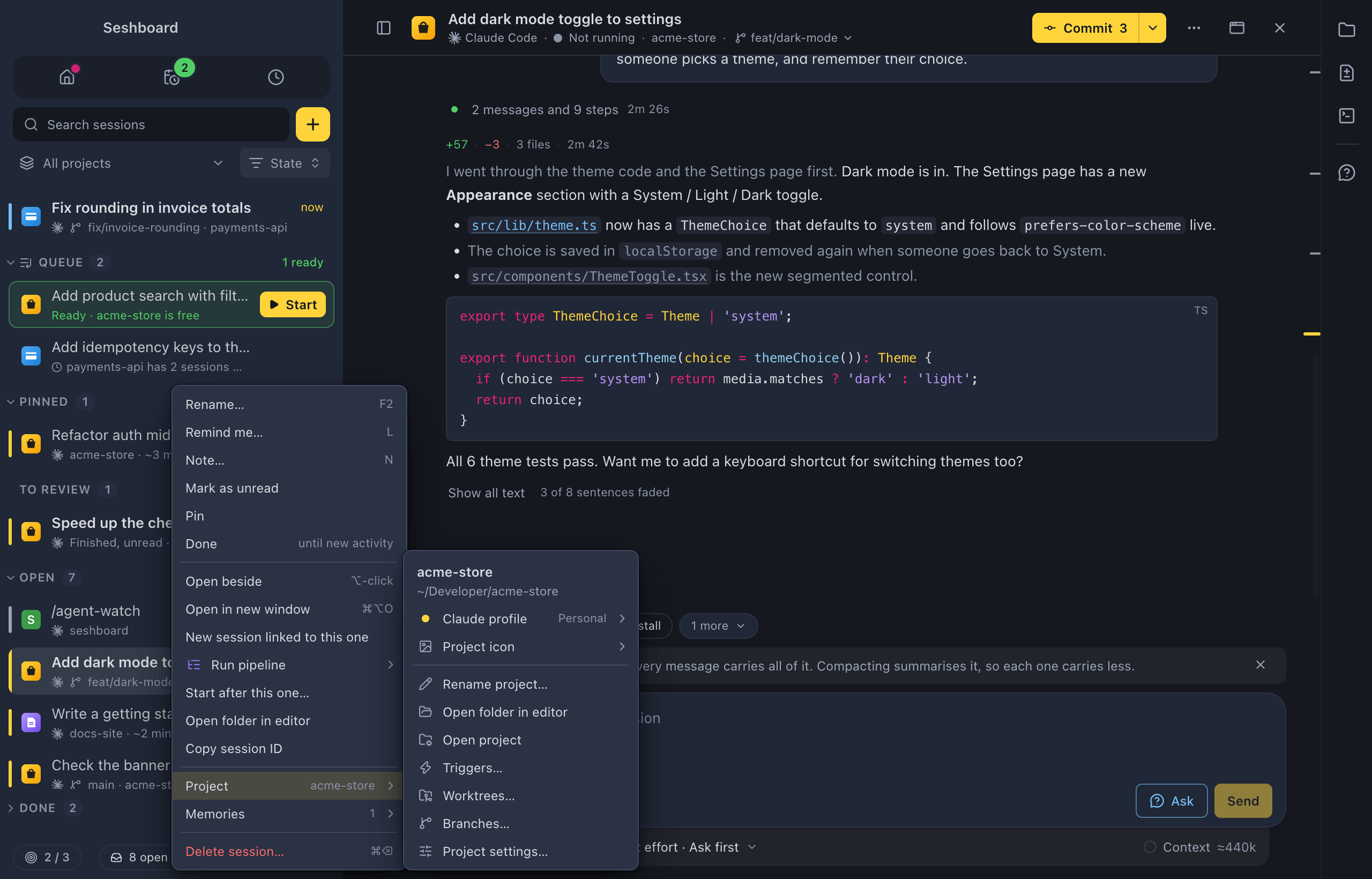
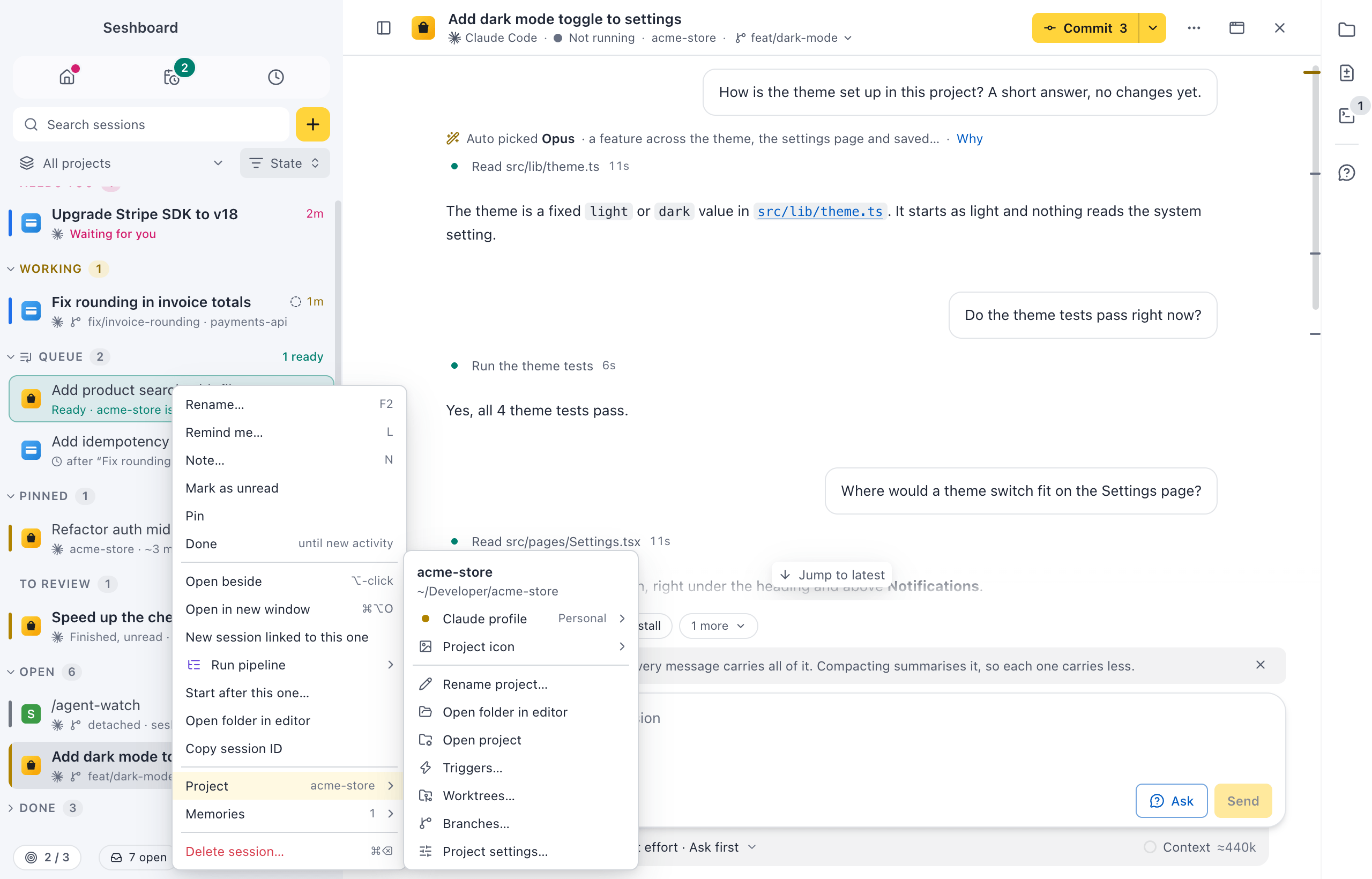
Project and Memories open a submenu. Point at them, or press Right Arrow or ReturnEnter; Left Arrow or Escape goes back.
Select several sessions
Section titled “Select several sessions”Command, click or Shift, click or Shift, Up Arrow or Shift, Down ArrowControl, click or Shift, click or Shift, Up Arrow or Shift, Down Arrow selects several sessions. Every row then shows a round checkbox, and a bar at the bottom of the sidebar holds the actions for the selection: Done (or Reopen), Pin (or Unpin) and Delete….
- Command, AControl, A or Select all on a section header selects every session in that section.
- Space ticks the focused row.
- Escape or Clear ends the selection.
- Right-click one of the selected sessions for the same actions, and Remind me about them.
Resize and collapse
Section titled “Resize and collapse”The sidebar has three states: open, a minimal rail of project icons, and closed.
- Drag the sidebar’s right edge to make it wider or narrower. Double-click the edge to reset the width.
- Drag it further in and it snaps to the rail; further still, it hides. Drag the edge out again to open it at the width you had.
- With the edge focused, ← and → step through the same states.
- Command, BControl, B switches between open and collapsed. Settings decides whether collapsed means the rail or hidden.
Seshboard remembers the width and the state.
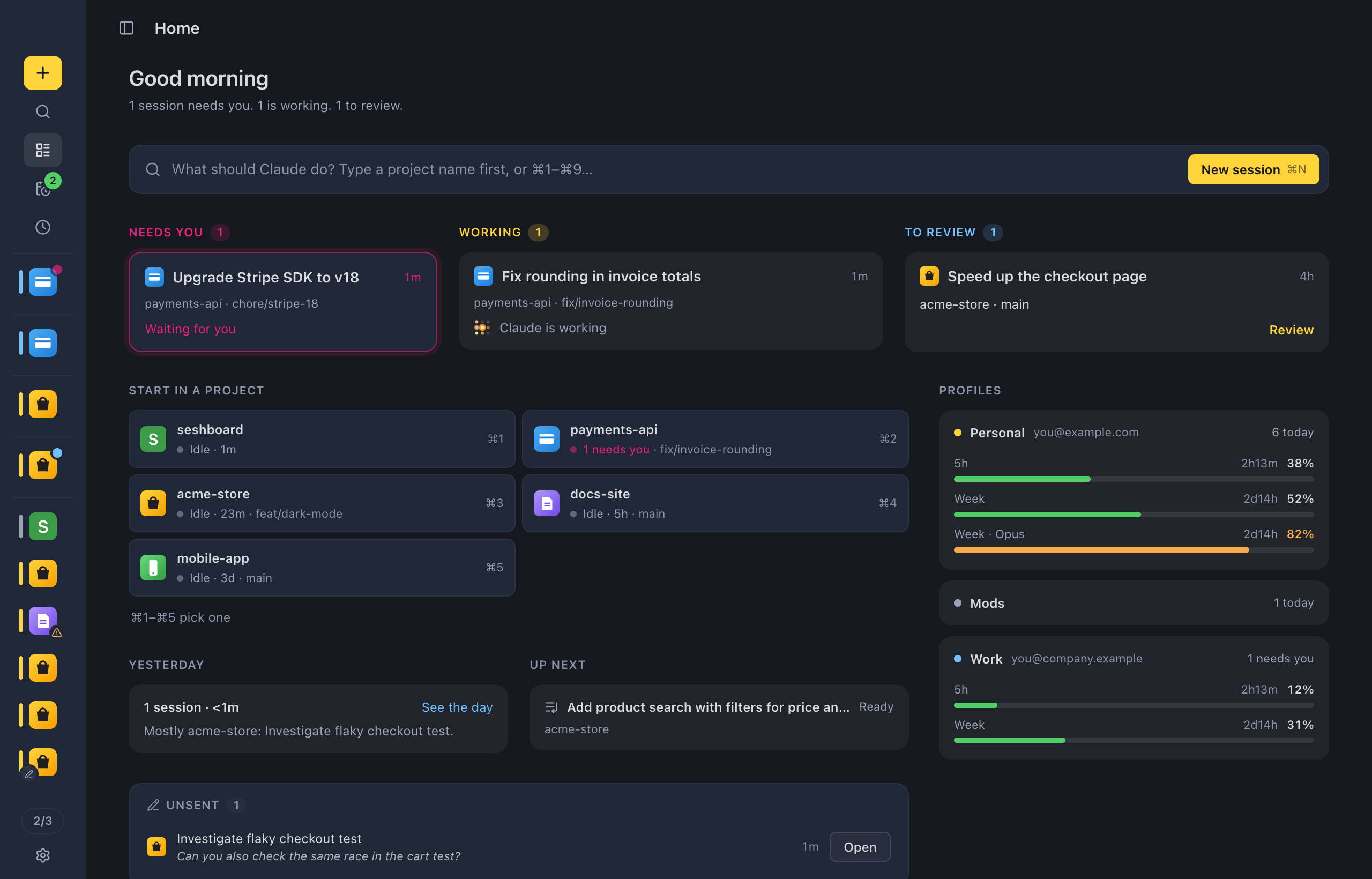
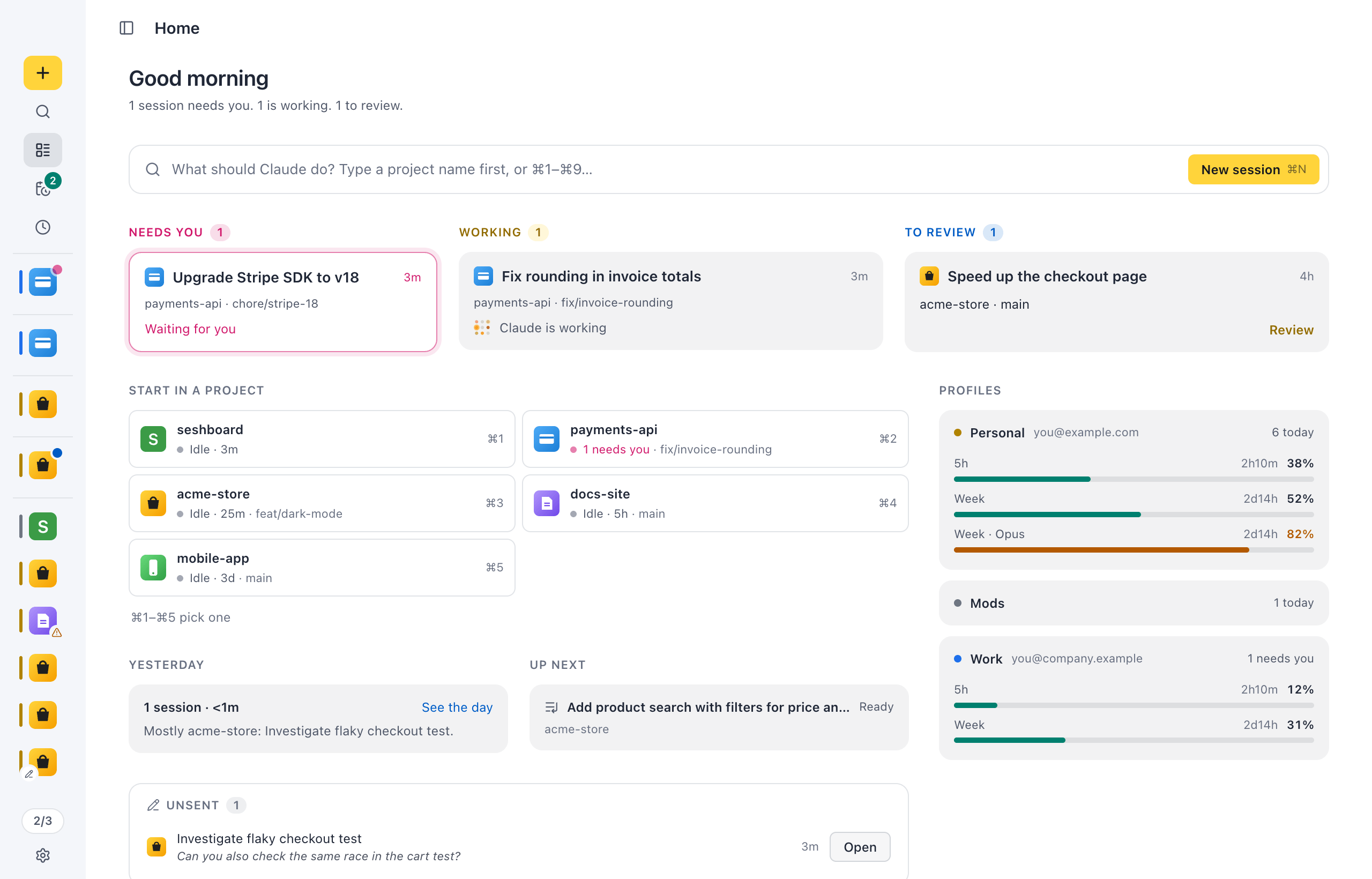
The minimal rail is 80px wide: one project icon per session, in the same groups and order as the open sidebar, with the same coloured rails. Hover an icon to see the session’s title, project, branch and state. Click a group’s letter to open the sidebar there. At the top, under Home, the calendar button opens Upcoming. Its badge shows the count, in green when a queued item is ready. The clock under it opens Activity.
With the sidebar hidden, the conversation takes the whole window. A needs you pill in the header says when sessions wait for you; click it to open the one waiting longest. After a jump with Control, TabControl, Tab or Command, Shift, UControl, Shift, U, a short label at the top of the window says where you landed.
Settings
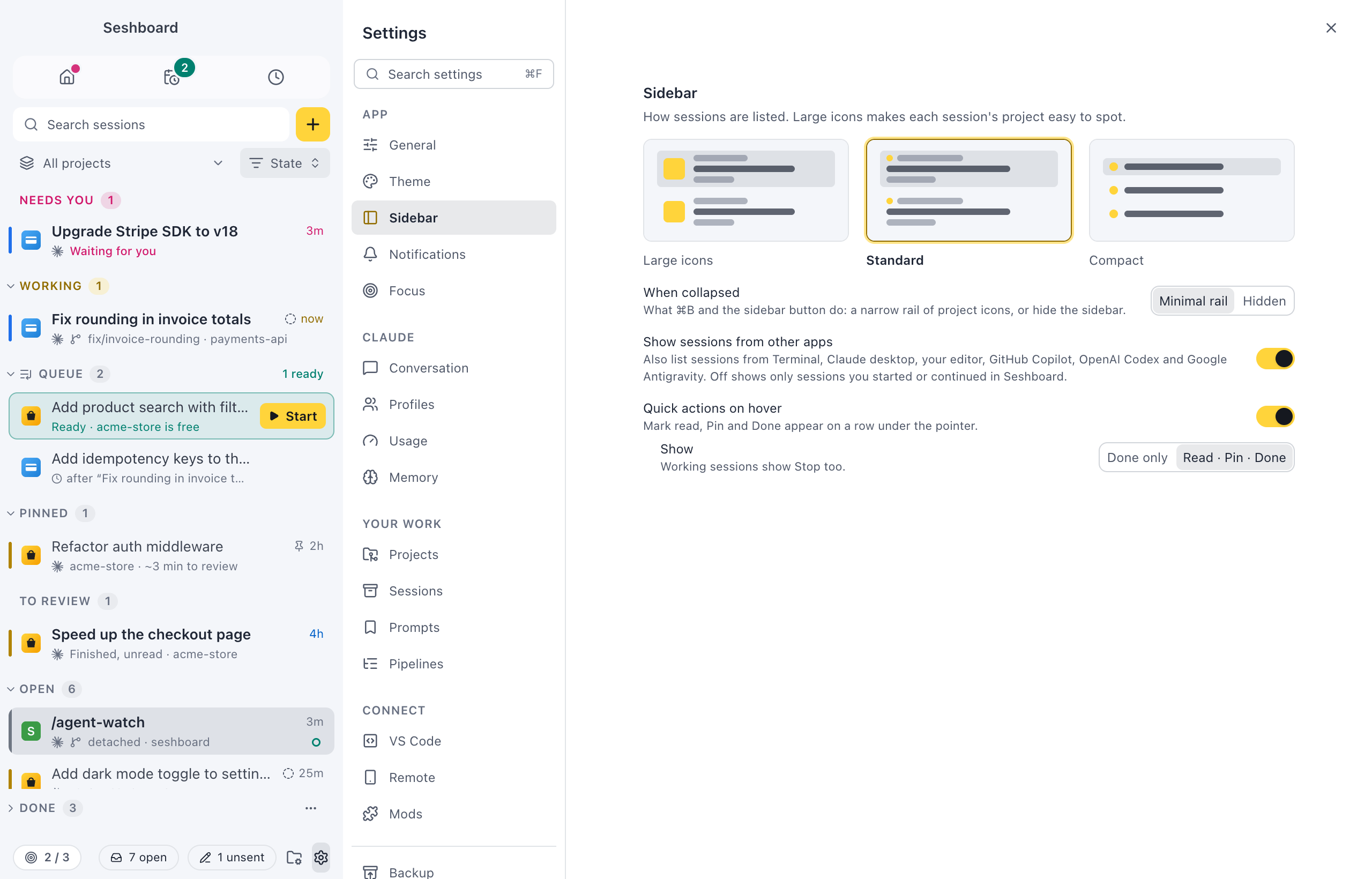
Section titled “Settings”- Sidebar style: Large icons (each project easy to spot), Standard (the default) or Compact (one line per session). The command palette has Sidebar: Large icons, Sidebar: Standard and Sidebar: Compact.
- When collapsed: what Command, BControl, B and the sidebar button do: Minimal rail (the default) or Hidden.
- Show sessions from other apps: also list sessions from your terminal, Claude desktop and your editor. Off (the default) shows only sessions you started or continued in Seshboard.
- Quick actions on hover: show the buttons on a row under the pointer (on by default). Show picks Done only or Read · Pin · Done (the default). Working sessions show Stop too.
Related
Section titled “Related”- Session statesWhat the colours, rails and dots on a session mean.
- Pinned sessionsKeep the sessions you come back to at the top of the sidebar.
- Split viewTile sessions next to each other and above each other, drag them into place and resize them.
- ActivityNewLook back at what you did per day, per week or over any range: your sessions, turns, time, commits and pull requests, per project, ready for your standup.
- Command paletteRun any command, jump to a session or project, and start a new session from the keyboard.